1.Error: Processing: Datatable not loading
Sometimes the list won’t load and always show “Processing…”
Try the below solutions to solve this.
- Try disabling mod_security in your hosting. Contact the hosting provider to get help on this.
- Contact your hosting provider to increase URI length limit
- Open .env file present inside pos folder, check if the APP_URL is set correctly or not.
- APP_URL should match the POS base URL
- APP_URL should start with HTTP or HTTPS based on your website
- If using Cloudflare, Try disabling Cloudflare.
- Check you’re using the correct PHP version as mentioned in the installation document.
The above 5 steps will help resolve 99% of cases.
2.Datatable save state (Column Visibility Permanent save)
Datatable save state will save the state of data table in user’s browser.
- Hidden field from column visibility will be saved
- Search filter will be saved
- Sorting will be saved
Official documentation – Datatable State saving
Steps to do it in OnePOS:
- Open pos\public\js\common.js
- Search for “fixedHeader: true,”
- after that add this line:
stateSave:true, - Clear your browser cache for changes to reflect.
3.overriding, modifying or changing any view file (custom views)
eature available in OnePOS 3.5 or higher
To change any view files, making direct changes in the file is not recommended. Instead, follow the below steps to create a new file that will override the view file:
- Create a folder with the name “custom_views” inside the pos folder, like the below screenshot.
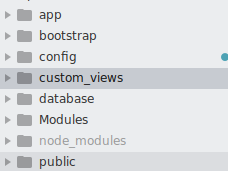
- Examples:
- If suppose you want to override the welcome.blade.php file which is present in pos/resources/views/welcome.blade.php then simply create a welcome.blade.php file inside custom_views directory. Copy-Paste code of the original welcome.blade.php file in the newly created file and make changes in the new file.
- Similarly to override any file with name xyz.blade.php present inside pos/resources/views/directory_1/directory_2/xyz.blade.php create custom_views/directory_1/directory_2/xyz.blade.php, copy-paste the content of original file, and modify it in new files.
-
The benefit of using this way is the original file is never changed and in any future updated your modified files will not be overwritten.
Overriding modules view files:
To override modules, view files:
- inside custom_views create a folder called “modules”
- Inside module folder create a folder with the name of the module – that is for example crm or project or repair or superadmin or WooCommerce
- Inside that create folders as advised above.
4.Document upload file types restriction
Document upload file type restriction
This is used for restricting the type of files that can be uploaded from upload documents present on many different screens.
To Add or Remove any file type that can be uploaded in document section
- Open pos/config/constants.php file for editing using cpanel editor or filezilla
- In this file, search for document_upload_mimes_types variable, this contains the array of files that can be uploaded.
- To add any new file type, search the MIME type from here, we need the MIME Type column and extension column
- Example:
MIME type = audio/mpeg
Extension = mp3
Add it as ‘audio/mpeg’ => ‘mp3’, - Follow the php array convention to not make any mistake in the array
5.Different files path
Different file path details
Login page: /resources/views/auth/login.blade.php
Registration page: /resources/views/auth/register.blade.php
Landing page: /resources/views/welcome.blade.php
Dashboard page: pos\resources\views\home\index.blade.php
Tour steps in dashboard file: pos\public\js\help-tour.js
Layout for welcome page: pos/resources\views\layouts\home.blade.php
Layout for auth(login/register/forgot password): pos/resources\views\layouts\auth2.blade.php
Layout for pricing: pos/resources\views\layouts\auth.blade.php
List Customers: resource/views/contact/index.blade.php
Add Customers: resources/views/contact/create.blade.php
POS page: pos\resources\views\sale_pos\create.blade.php
List POS page: resources/views/sale_pos/index.blade.php
resources/views/sale_pos/partials/sales_table.blade.php
Add Sale: resources/views/sell/create.blade.php
Pricing page for SaaS module: /Modules/Superadmin/Resources/views/pricing/index.blade.php
List Products page: resources/views/product/index.blade.php
Add Products: resources/views/product/create.blade.php
Invoice or receipt Layout/design: /resources/views/sale_pos/receipts/
Packaging slip design: /resources/views/sale_pos/receipts/packing_slip.blade.php
Barcode Label or Sticker design: resources/views/labels/partials/preview_2.blade.php
Add Barcode Settings: pos\resources\views\barcode\create.blade.php
CSS path: pos/public/css/app.css
Sidebar menu: app/Http/Middleware/AdminSidebarMenu.php
Purchase Invoice: pos/resources/views/purchase/partials/show_details.blade.php
Purchase Order: pos/resources/views/purchase/partials/show_details.blade.php
Purchase Order Invoice: pos/resources/views/purchase/partials/show_details
Customer/Suplier ledger: resources/views/contact/ledger.blade.php
Ledger format2: resources/views/contact/ledger_format_2.blade.php
Cash Register: resources/views/cash_register/register_details.blade.php
resources/views/cash_register/payment_details.blade.php
resources/views/cash_register/register_product_details.blade.php
List Purchase: pos\resources\views\purchase\index.blade.php
Add Purchase: pos\resources\views\purchase\create.blade.php
Stock Transfer: resources/views/stock_transfer/create.blade.php
All sale Page: pos\resources\views\sell\index.blade.php
Cron job settings: pos\Modules\Woocommerce\Providers\WoocommerceServiceProvider.php
QR code generation: Modules/ProductCatalogue/Resources/views/catalogue/generate_qr.blade.php
Display products list in QR Catalogue: Modules/ProductCatalogue/Resources/views/catalogue/index.blade.php
Register Report: resources/views/report/register_report.blade.php
Package Subscription View: Modules/Superadmin/Resources/Views/subscription/show_subscription_modal.blade.php
View Quotation: resources/views/sale_pos/show.blade.php
Add Quotation: resources/views/sale_pos/create.blade.php
Home Page – Footer: pos\resources\views\layouts\partials\footer.blade.php
To modify any of this file follow this procedure. DOCUMENT
6.Setting up Cron Jobs or scheduler
What is cron job?
Wiki: https://en.wikipedia.org/wiki/Cron
Use of Cron in OnePOS
Cron Jobs are used for the following purposes:
- Automatic Backup: If you want to automate the backup process to take place every day.
- Subscription invoice: If you use a recurring invoice or subscription invoice feature in Onepos.
- WooCommerce Module: Used in WooCommerce module only if you want to enable auto-synchronization of orders from WooCommerce to OnePOS.
- Superadmin Module: Notify the user when the subscription gets expired.
Any other features as mentioned throughout the documentation.
Setting up a cron job
-
- You will find cron job command in Administrator Backup screen(available since V2.13) or WooCommerce module API settings or Superadmin Cron Jobs Menu.
It will be in this format:
* * * * * php /path_to_pos_folder schedule:run >> /dev/null 2>&1 - Login into your Cpanel or direct admin or similar server management portal and Go into Cron Jobs or scheduler menu.
- In the “Add New Cron Job” section, select:
minutes = *
Hour = *
Day = *
Month = *
Weekday = *
Command = php /path_to_pos_folder schedule:run >> /dev/null 2>&1
The command is same as the command displayed above except removing all the * before it. - Click “Add New Cron Job” Button and it will be added.
- You will find cron job command in Administrator Backup screen(available since V2.13) or WooCommerce module API settings or Superadmin Cron Jobs Menu.
NOTE: only one cron job is required for all features, don’t add it multiple times.
NOTE: The cron command will be found in Superadmin settings, Woocommerce settings and Administer Backup page.
Setting cronjob interval in the code:
Follow the file path in the codebase pos\Modules\Woocommerce\Providers\WoocommerceServiceProvider.php
Search for the line twiceDaily(1, 13) and change it as per required.
Refer to the laravel official document below.
https://laravel.com/docs/9.x/scheduling#schedule-frequency-options
If you’re not using woocommerce module, follow this path pos\app\Console\Kernel.php.
Cron job errors & Fixes:
ArgvInput.php ‘Invalid argument supplied for foreach()’
To fix this error, go to edit php.ini and enable/turn-on register_argc_argv ini settings. And it will start to work fine.
7.Error while entering more than 70 item: “Undefined index : ” Problem when submitting a form
“Undefined Index: “ error happens when you submit a form with long input fields or many rows in it.
error while entering more than 70 item
when i create purchase and add 70 items only 52 is saved other data is lossed
Solution 1:
Increase the max_input_vars variable in your php.ini file. For technical details Refer to official PHP documentation
There are a few possible ways to do this:
- Edit the php.ini file and change the value of max_input_vars to something higher like 5000.
- Or change it from .htaccess file by this statement: (more details here)
php_value max_input_vars 5000 - If the above 1,2 didn’t work then contact your hosting provider to help you change the ini file variable.
8.Error: Replicating claims as headers is deprecated and will removed from v4.0. Please manually set the header if you need it replicated.
Error: Replicating claims as headers is deprecated and will removed from v4.0. Please manually set the header if you need it replicated.
Sometimes this error happens for some hostings. To fix this error, follow these steps:
- Open this file: app\Providers\AppServiceProvider.php
- In line 25 (inside the boot function) add this statements:
- Save it and this will be fixed.
if (config('app.debug')) {
    error_reporting(E_ALL & ~E_USER_DEPRECATED);
} else {
    error_reporting(0);
}
9.504 Gateway Time-out
504 Gateway-time out error – Nginx server error

You may encounter this error when OnePOS and is not related to this application. It’s an error in the server.
Solution to Gateway-time out error
- Try restating the server
- Contact your hosting provider to help with it.
- Contact your hosting to increase the server(nginx or apache) timeout time
- Increase max execution time in php.ini (Contact server admin for details help)
- Check this blog post by lifewire
Rearrange Side bar links
Rearrange links in the sidebar menu
To rearrange sidebar menu, follow the file path
app/Http/Middleware/AdminSidebarMenu.php
In the same file there is a line after every menu like ->order(10) . In this line, the number can be changed to rearrange the menu items.
10.Updating OnePOS after modification
Updating OnePOS after Modifications
For any modifications in OnePOS, we recommend the below approaches to help with easy modifications:
Approach 1: Separate Module
If you want to do a lot of modifications, we recommend that you create it as a separate module.
Checkout Module Development Documentation
Approach 2: Custom View Files
Use Custom view files to make any modifications in view files.
Checkout Custom View Files Documentation
Approach 3: Create Separate files
Use separate files for all adding custom js/css/php code.
Approach 4: Update & Apply your changes again
If none of the above approaches works, then we recommend that you update OnePOS to the latest version & merge your changes into latest codebase.
11.Disabling Success/Error Message Sound in OnePOS
How to turn off the sound while making transactions (or) How to turn off the sound for success/error messages?
While making any process with OnePOS, a notification sound is generated for both the success or failure of the process.
This audio can be disabled by following the steps below.
Step 1: Check the file public\js\common.js in the codebase.
Step 2: Search for the line audio.play(); and comment on the line.
12.Setting up Google reCAPTCHA Keys
Setting up Google reCAPTCHA Keys:
To have the google reCAPTCHA in your login screen, follow the steps given below.
Step 1: Open your browser and visit the Google reCAPTCHA website – https://www.google.com/recaptcha/admin/create
Step 2: Log in the website using your Google account details.
Step 3: Register a new site.
Step 3.1: Click the ‘+’ button at the top right corner to add a new site.
Step 3.2: A wizard will be displayed to complete the necessary details. Fill in the correct details.
Step 4: Fill in the details as mentioned below. Refer to the screenshot added below.
- Label: Enter a label to identify your site (e.g., your domain name and a note).
- Type of reCAPTCHA: Select reCAPTCHA v2. Make sure to choose the appropriate type, such as “I’m not a robot”.
- Domains: Enter your site’s domain name (e.g., example.com). If you have multiple domains, add them all.
- Owners: The current email will be added by default. You can add more email addresses if needed.
Step 5: Accept the Terms of Service check box.
Step 6: Click the Submit button.
Step 7: The site key and secret key will be generated. Copy these keys and use them in your application.
Step 8: Add these variables in your .env file as mentioned below.
ENABLE_RECAPTCHA=true
GOOGLE_RECAPTCHA_KEY=your_site_key_here
GOOGLE_RECAPTCHA_SECRET=your_secret_key_here