1.Sales Order
What is a Sales Order?
Sales Order is a document given by the supplier to the buyer against a Purchase Order by the buyer.
A sales order contains the buyer invoicing details, delivery details, products, quantities, pricing, tax, discounts, payment terms, payment details, shipping charges if any, and other notes.
Once the buyer agrees on the sales order, goods are shipped by the supplier.
Sale order has multiple statuses: Ordered, Partial, Completed
Enabling Sales Order
To enable Sales Order, follow the below steps:
- Go to Settings -> Business Settings
- Sales tab -> Enable Sales Order
- Save it.
Using Sales Order
Creating sales order
After Enabling sales order, inside Sales you’ll find the Sales-Order menu.
Go to add sales order, fill in all the details and save it.
Stocks are not deducted for sales orders.
Once a sales order is created you can print it and send it to the buyer for approval.
Converting Sales Order to Sales
On approval of sales orders, you can create sales from the sales order.
- Go to Sales -> Add sales, select the business location & Customer.
- On Selecting it will populate the list of all sales orders related to the customer on the “Sales Order” dropdown.
- Select the Sales Order and it will auto load the products for that order with the product’s price, tax, discounts applied automatically as the sales order.
- You can increase or decrease the quantity.
2.Selling (POS Screen), Credit Sales, Draft, Quotations & Suspended Sales.
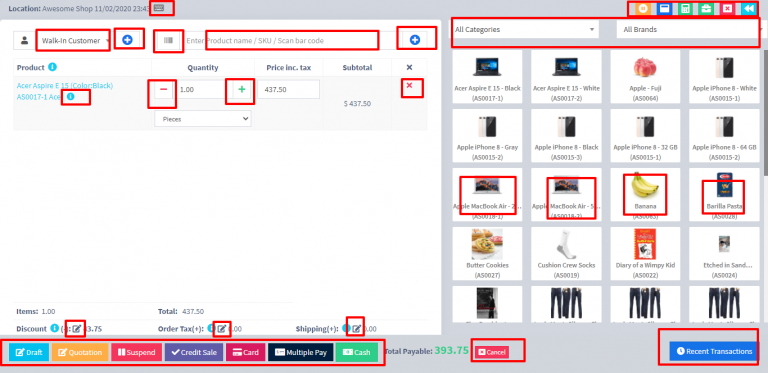
Interactions points in POS Screen.
Selling Products, Changing Product Price, Tax & Discount, Lot number & Expiry
Go to – Sell -> POS
Selecting Customer:
By default, there is “Walk-In Customer”. You can search for a customer by name/customer id or phone number or can add new customer by clicking the plus (+) button “Add Customer”.
Searching & Adding Product:
Enter Product Name Or scan the barcode to search the product. If multiple products are matched then it displays the dropdown of products, selects the product from it. Or if there is a single product then it directly gets added to cart.
Changing Product Price, Tax & Discount for a product
- After the products get added, click on the product name to modify product price, tax & discounts.
NOTE: Option for different tax in products will be shown only if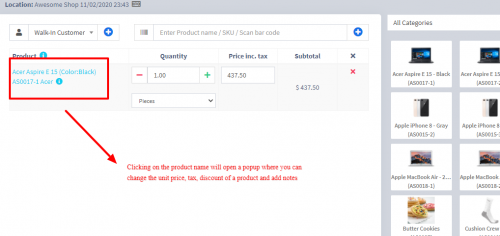
- Inline tax is enabled. You can enable it from Business Settings -> Tax -> Enable Inline Tax in purchase and sell
Selecting Lot number for a product
- If lot number is enabled, then it will show the option to select lot number. (Enabling lot number)
Selecting Expiry for a product
- Expiry Date: If the expiry date is enabled then it will show the option to select lot number. (Enabling expiry)
Cancel Sales:
To cancel the sales click on the cancel button. Cancel invoices are not saved in the system, so no stock will be deducted.
To finalize the invoice click on Finalize – Add the payment options and save it.
On save it will display an invoice printing option.
NOTE: For invoice to print correctly – The Margins options should be set to “Default”.
List of sales can be viewed from Sell -> List Sales.
List of drafts can be viewed from Sell -> Drafts.
Both Sell & Drafts can be edited to make any changes.
Express Checkout: Express Checkout means the sale will be marked as Paid and the payment method will be cash. No separate payment screen will be displayed. Printing of invoice depends on the business location settings.
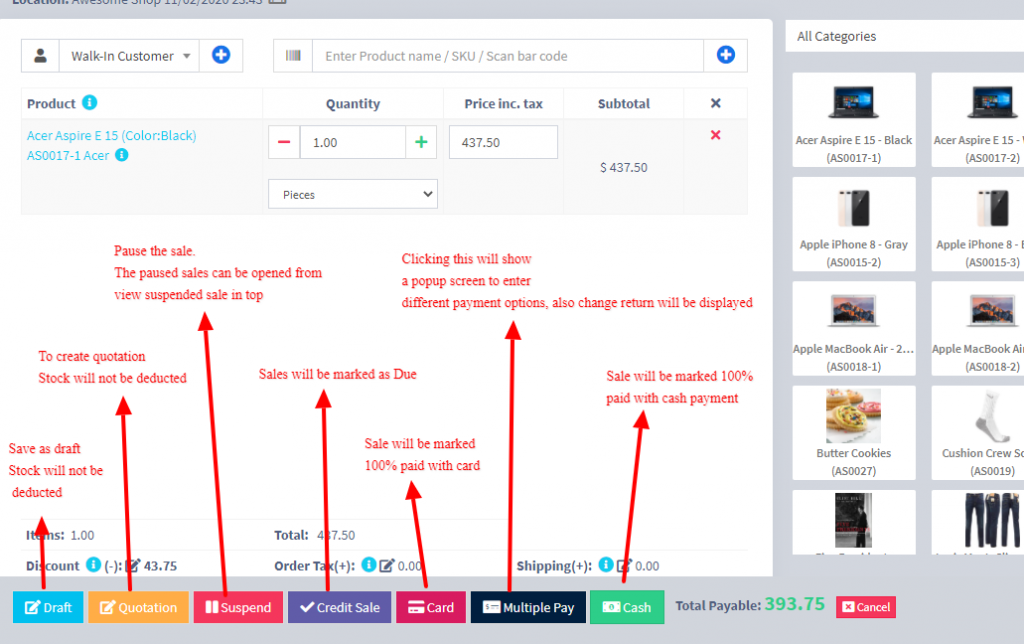
100% Credit Sales
- To sell on credit to the customer you first need to enable this button by going to Settings -> Business Settings -> POS -> Show Credit Sale Button
- Then on the POS screen, you will be able to see a button “Credit Sale”, simply click this button to make sales on credit.
Half Credit & half payment Sales:
Suppose invoice amount is $1000, customers pay $700 cash and $300 is credit amount on him, then follow these steps:
- Click on multiple pay button
- Select the payment method and enter the amount paid by the customer. ($700 in our example)
- Click finalize payment.
- Now, the pending amount is automatically added as credit amount on him (or amount to be taken from the customer)
Previous sale amount in Sales:
If a sale is made for the customer for a subsequent time for the same product, the previous amount in which the product is sold will be shown for reference in add sale screen.
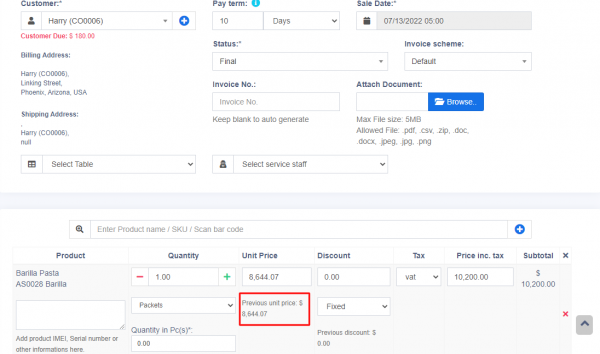
This feature can also be used for purchase of same products from a supplier.
NOTE: This feature is available in version 4.7.8 and above
Draft & Quotation
This is useful if you want to create a quotation before sales.
Marking a sales as Draft or Quotations will not deduct the available stock.
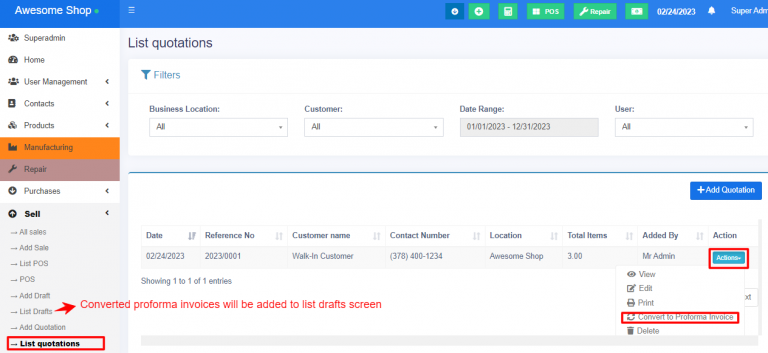
You can view all Quotations & Drafts from List Quotation or List Draft respectively. Existing draft/Quotation can be edited to make it as final sales.
Convert Draft/Quotation to Sale invoice
To convert a draft/quotation to sale invoice, follow the steps below
Go to List draft / List quotation. Click on the action button.
Select edit in the dropdown.
Change the status from draft/Quotation to Final and save it.
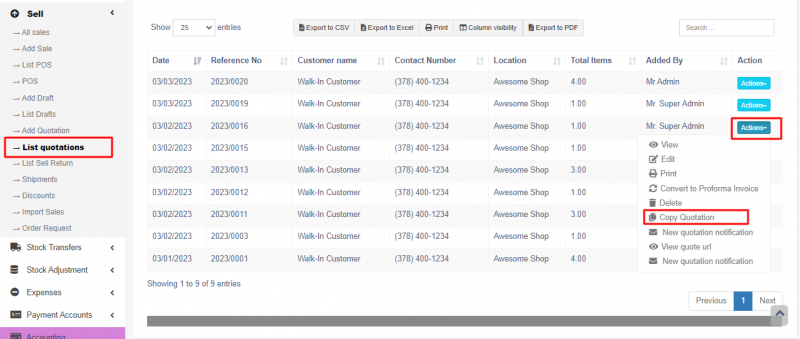
Copy Quotation
Quotations can be copied or duplicated.
Go to Sale > List Quotations > Actions > Copy Quotation
Suspended Sales
Suspend Sales means unfinished sale or hold Sale.
Suspended sales stock gets deducted from available stock. You can view all suspended sales by clicking on the Yellow Color button present in very top right of screen (above the date).
Some Use Case of Suspended sales
- In a grocery store, if you have suspended button, you can suspend particular customers sales and entertain another customer, when his comeback you can proceed with his sale.
- In Restaurant, you can suspend the order of customers if not yet paid, and finish it when they finish eating and paid their order, so you can proceed to final sales. You can put Table 1, Table 2, Table 3… so when they finish it’s easy to identify table 3 going to pay.
- In hotel lots of customers check in stay for 2 nights and order some foods and customers say, just charge to room 024. So you can suspend their orders and edit if there is some additional order and suspend again. Until final it when they pay their bills. on Hotel, on Reference Number: Room 009, Room 012
Card / Multiple Pay / Cash
- Multiple Pay: Used when the customer wants to pay with different payment methods like some amount by card, some by cash and some other payment methods. This option is also used when the customer doesn’t pay the exact tender amount, and you need to calculate the Return Change.
- Card: Used when the customer wants to pay the complete invoice by card.
- Cash: Used when customer pay the exact amount of invoice by cash. If the customer pays less or more amount, then the invoice amount then use Multiple Pay to get change return.
Adding payments from Contact
Go to contact -> Suppliers. Click on actions for the supplier and it will show “Pay Due amount”, click on it and pay the amount. “Pay Due amount” this option is not displayed if there is no payment due.
Adding/Editing Payment Method or Pay-Via
Follow Add/Edit Pay-Via / payment method.
Rounding Mechanism for total Sales amount or total payable
Rounding helps to round the total payable to nearest currency exchange available.
To enable rounding go to Settings -> Business Settings -> Sales and choose the Amount rounding method
Amount rounding method
- Round to nearest whole number: It will round the paybale value to nearest whole number. For example 1.49 will be rounded to 1.00, and 1.51will be rounded to 2.00
- Round to nearest decimal (multiple of 0.05): It will round the paybale value to nearest decimal number which is multiple of 0.05. For example 1.49 will be rounded to 1.50, 1.51 will be rounded to 1.50, 1.59 will be rounded to 1.60, 1.54 will be rounded to 1.55
Similary all other round to nearest decimal number works as per the multiplier.
3.Tender Change or Change Return
Suppose during POS the total payment amount by a customer is $250, but the customer pays $300 cash.
In this case, the cashier needs to return $50 cash to the customer.
So, enter all these details in the system, follow the below steps:
- Click on the “Multiple Pay” button. It will open a popup
- Enter the paid amount by the customer ($300 here)
- On the right side, it will show a “Change Return” Amount. This amount needs to be returned to the customer
- Click on finalize button to save the sales.
The change amount is shown in the invoice. To create a custom label for change return Go to Settings -> Invoice layout change the ‘change return label’ to a required label and save the changes.
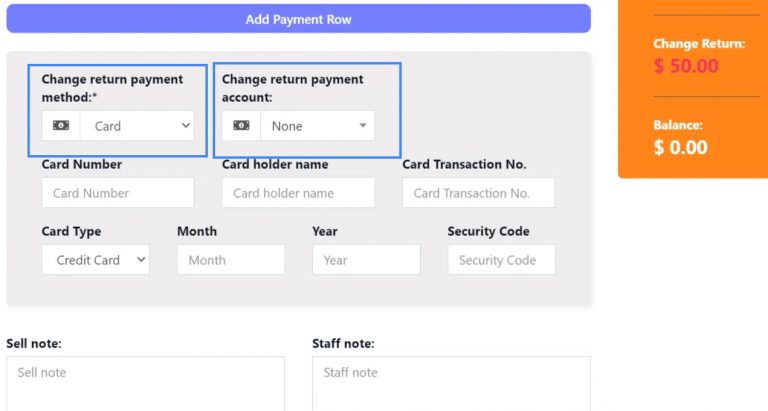
Changing Payment Method and Payment Account while Adding a Change Return:
While you are adding a sale where the customer is paying an amount greater than the invoice amount, you can return the balance amount either through cash, card or any other payment method.
To add the payment method/payment account for change return, you can select the payment method/payment account in the Change return payment method and payment account dropboxs in the POS screen.
NOTE: This method can also be used while adding a sale return by editing an invoice. For more details check ->Sale Return/#First way
4.Featured Products in POS screen
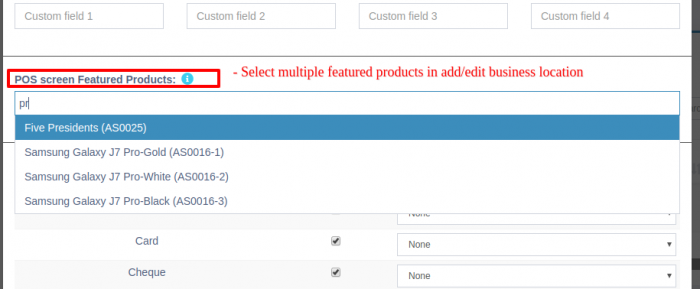
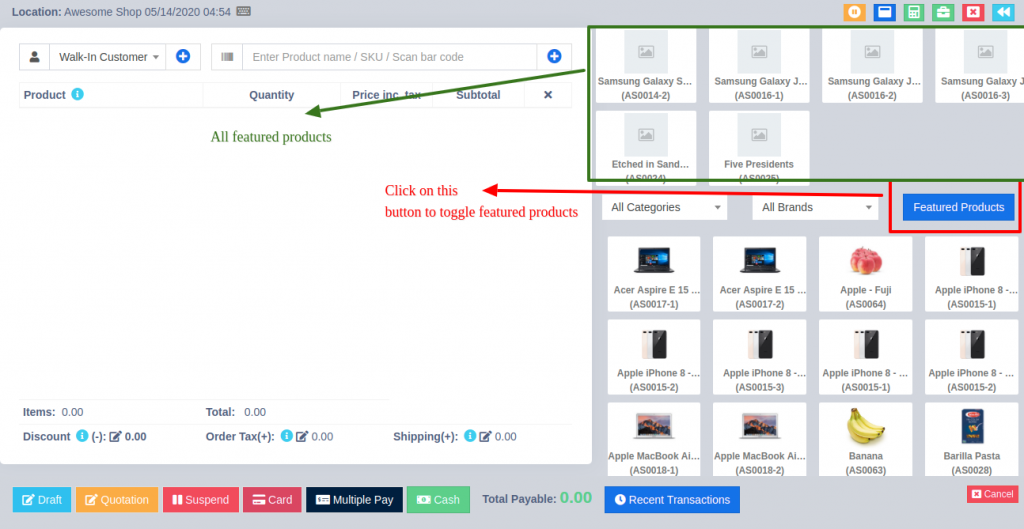
Adding featured products helps you quickly access some products which are frequently or most commonly sold.
To add featured products follow these steps:
- Go to Settings -> Business Locations.
- Add/Edit any business locations
- In add/edit screen you can select multiple products that can be featured in pos for this location.
5.Using Ultimate POS for Selling of Services
Ultimate POS can be used:
- Exclusively for Services or
- Exclusively for Product Selling (trading) Or
- Combination of Services & selling of Products.
Selling Services
Services are Intangible products.
Example: Repairing, Salon & Spa services, Web Development, Accounting, banking, cleaning, consultancy, education, insurance, expertise, medical treatment, transportation and a lot more.
- To add service Go to Add New Products.
- Add the name of your Service, Like Computer Repair, Accounting, E-Commerce Development, Consulting, Plumber, Saving, Hair Cutting, etc.
- While adding service-based products uncheck the “Manage Stock?“ option. When Manage stock is unchecked or disabled the stock for such products is not managed, because such a product doesn’t have a stock count with it.
- Purchase Price: Add anything to the purchase price, it can be 1 or 0, or something else. The purchase price is of no use in service.
- If you want to add a description for such service like for example in computer repair you want to describe the problem for such service then check the “Enable Product description, IMEI or Serial Number” checkbox.
Now to create invoice or receipt for such service
1. Go to Add Sales or POS screen.
2. Enter the name of the service.
3. If you have enabled “Enable Product description, IMEI or Serial Number”, then it will show you a popup to add a description. If you haven’t enabled description you can click on the button as shown the image below.
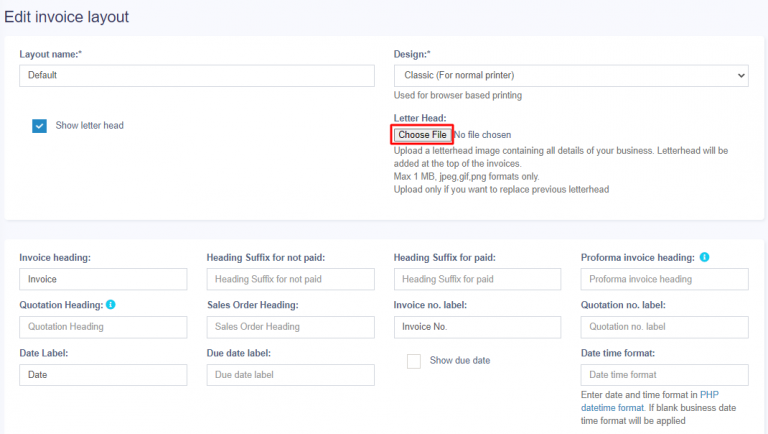
4. To print the description in the invoice, go to Setting -> Invoice Settings -> Invoice Layout. And click on the layout you’re using. Enable “Show sale description “. And click on “Update” to update the invoice layout.
Now it will display the Description you entered on the invoice or receipt.
6.Sales Return
There are 2 ways of adding sales return
First way:
Edit existing invoice for the sales by going to edit the invoice and remove the product or reduce the quantity of the product. And save it. The system will automatically add the returned quantity back to stock. This is a simple & recommended way of doing.
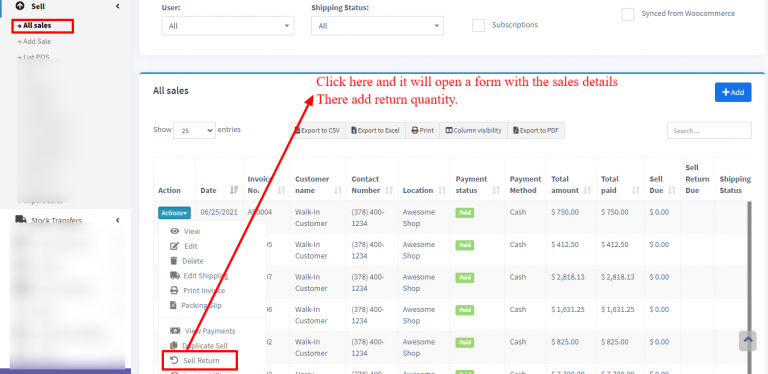
Second Way:
Follow the screenshot below:
Question: Why sell return value not decrease the payment value from the parent invoice?
- UltimatePOS will adjust these values in the Profit & Loss report.
- Regarding payment, users have to add a transaction for receiving payment from the customer and then paying them back. This way all the transactions are recorded.
7.Sales Subscriptions
Enabling Subscriptions:
To enable subscription, go to Modules -> Check the “Enable Subscriptions” and save it.
IMPORTANT: For subscription invoice to auto-generate cron job must be set up.
Using Subscriptions:
- Subscriptions can be added from both POS sales or normal Sales screen.
- In POS or sales screen to add subscriptions click on “Subscribe?” Checkbox
- On clicking subscribe it shows a popup modal, enter the subscription frequency like every 1 day or every 5 days or every 1 month etc. Also enter the subscription frequency, like if a user wants so to subscribe only 5 times the enter 5, for unlimited leave it blank.
- All subscriptions appear in Sell -> Subscriptions screen. From here you can also start/stop a subscription.
- When a subscription invoice is auto generated then a notification is sent to admin & salesperson.
Subscriptions Indicators:
While adding subscription sales, the sales will be marked with an indication in the “All Sales” screen.
This indicator will be in either of two colors, blue or red.
The indicators represent