1.Enabling & using Payment account or bank account
What is payment accounts in UltimatePOS?
Payment accounts are like for example bank account. You can transfer money from one payment account to another, deposit cash in payment account, pay to a supplier, or deposit the amount received from a customer here.
Enabling Payment account
- Go to Settings ->Business Settings -> Modules
- Enable payment ‘Account’ option
- Save it.
- After saving you will see the “Payment accounts” option will be visible in the left navigation bar.
Payment account type & sub-type
- Go to Payment accounts -> List accounts -> Account Types
- Account type: to add an account type click on Add button and enter the name of the account type and submit. Keep the Parent account type unselected.
- Sub-Account type: To add a sub-account type click on Add button, enter the name of the sub-account type and select the Parent-account-type.
- When creating an account you can select the account type as per your need.
Creating Payment accounts
- To create a payment account, Go to Payment Accounts -> List Accounts, click on Add button
- Fill in all the details like name, account number, Account type, opening balance, Account details & notes.
- Account Details: Here you can add any additional account details, like for example UPI ID, SWIFT code, BIN number, etc which vary depending on the accounts.
Transferring funds between Payment accounts:
You can transfer funds between the payment accounts.
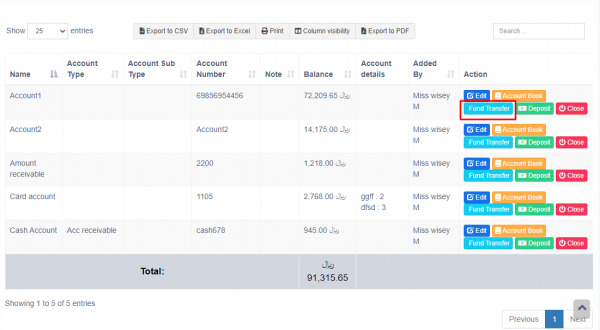
In the Payment Accounts -> List Accounts, click on fund transfer.
2.Setting default payment accounts for payment methods
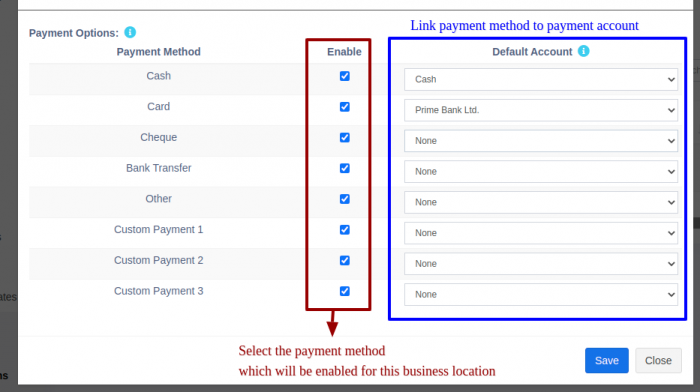
In Add/Edit business location you can select the default payment account for each payment method.
If the payment account is linked then when adding a payment for sales/purchase/expense, on selecting the payment method the payment account will be automatically selected.