6.[ADDON] Manufacturing module for OnePOS
Installing the Manufacturing Module:
Before installation, make sure you meet the below requirements:
- Since this is not a standalone application you will need OnePOS (Download from here)
- OnePOS – Latest installed. For OnePOS installation step refer to this documentation.
Installation:
- Unzip the file downloaded zip file. Inside that, you will find “Manufacturing” directory.
- Go to OnePOS installed directory in your server. There you will find a folder named “Modules” (on the same level as app or bootstrap directory). If this folder is not present then create “Modules” folder (Make sure the folder name is exactly “Modules” with “M” in capital case). It should be inside the POS codebase, at the same level as the “public” folder. (NOT inside public folder)
- Upload or Cut-Paste the “Manufacturing” directory inside this “Modules” directory.
- Open .env file. Inside that, you will find “ADMINISTRATOR_USERNAMES” configuration. Add the superadmin/administrator username in this option. If already added then skip this step.
For example, if “user1” is superadmin then:
ADMINISTRATOR_USERNAMES=user1 - Login with superadmin (username which is added in step 4). After login, you will able to see the manufacturing menu present in the sidebar. If not present them make sure the above steps are followed properly.
- If your pos is installed in www.example.com then go to www.example.com/manufacturing/install
- Enter the license key & username which you can get from the steps in the documentation linked.
- It will process for a few minutes and the installation success message will be displayed.
Great, the installation is successfully completed.
Installation:
- Download the new version from
- Extract/Unzip the Zip file.
- Inside the “Manufacturing-(SaaS-compatible)-V” folder you will find a “Manufacturing” folder.
- Open your cPanel or DirectAdmin or FTP (Filezilla) or localhost and go to the Modules folder.
- Delete the existing “Manufacturing” module from your folder on your server.
- Upload the new downloaded “Manufacturing” module.
- Log in with your superadmin or Administrator account in POS.
- Run this URL in your browser:
http://yourwebsite.com/manufacturing/install/update or if you’re using a sub-domain:
http://subdomain.yourwebsite.com/manufacturing/install/update
It will run for a few minutes and show a success message. - You can view the version number of the manufacturing module in the messages screen.
Using manufacturing module
Creating Recipe:
- To add a new recipe, go to Manufacturing -> Recipe
- Click on the Add button, it will open a popup,
- Choose Product: select the product for which you want to add a recipe
- Copy from recipe: (optional) choose the product whose recipe will be copied to the chosen product. You can use this option to quickly copy a recipe from another product & make small changes as required.
- Add all ingredients/raw materials, wastage percentage & final quantity.
The wastage percentage mentioned here is wastage for the raw ingredients which happens when the ingredient is cleaned, for example in cabbage some % is wasted when leaves & stems are removed. If the raw materials you’re using don’t have wastage you can keep it 0 %, which is the default.
Raw Ingredients: Raw ingredients are taken from the list of products. You can mark a raw ingredient as “Not For Sale” if it is not used for selling individually. For example, Some Raw ingredients like butter can be sold, some cannot be. - Wastage %: Enter the wastage for the final product which can happen because of bad quality or other reasons.
- Total Output Quantity: Output quantity for which you entered the recipe.
- Production Cost: Check the production cost as described below.
- Recipe Instructions: Steps to be followed for the production of the final product from ingredients.
Production Cost:
- Fixed: If cost is fixed then a fixed amount will be used as production cost.
- Percentage: If percentage then the percentage of ingredients cost is taken as production cost.
- Per Unit: In this case, the total production cost is multiplied by the total output quantity
Adding Production:
- To add production, go to Manufacturing -> Add Production
- Reference No: Optional reference number, you can keep it blank to auto-generate it.
- Business Location: Select the business location where production is done. Raw ingredients stocks will be deducted from this location & final manufactured product stock will be added to this location.
- Product: Select the product for manufacturing. based on selected product it will display all the Raw ingredients from recipe added.
- Quantity: Quantity of final product to manufactured. Based on this Raw ingredient's quantity will be calculated from recipe.
- Input Quantity: Input quantity raw ingredients which will be used for production.
- Wastage Percent: Waste percentage of raw ingredients. For example, if you took Cabbage 1 KG, and 200 grams is wastage then wastage percentage is 20%, so 800 grams will be the final quantity.
- Final quantity: Input Quantity – Wastage Percent
- Wasted Quantity: Wastage quantity of final product for any reason.
- Production Cost: Check the production cost as described below.
- Finalize checkbox: Check this checkbox to finalize the production, this will remove the stock of raw ingredients & add stocks for the manufactured products. After finalizing the production cannot be edited.
Changes in Material (Item) Quantity during Production:
When production is done for a product, the quantity of raw materials gets reduced.
For example, for adding production of 1 packet of Chocolate Milk Shake. The raw materials used here are 1 packet of milk and 1 packet of bar chocolate.
When production is added for this product (Chocolate Milk Shake) and finalized, the following changes happen in product quantity.
- The quantity of milk gets decreased by 1 packet.
- The quantity of bar chocolate gets decreased by 1 packet.
- The quantity of Chocolate Milk Shake gets increased by 1 packet.
NOTE: These changes happen for just one time when the production is added.
Update Product Price:
The price of the ingredients added to the recipe will change often. For example, the price of milk added as an ingredient to the recipe Chocolate Milk Shake is increased.
Similarly, there may be an increase or decrease in the price of ingredients added to the recipe. This price change can be easily updated to the ingredients by using the Update Price Button.
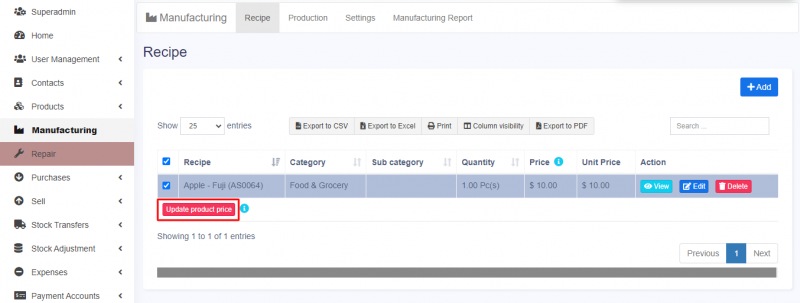
Follow the steps below to update the price.
Step 1: Go to Manufacturing Module > Recipe Tab.
Step 2: Select the recipes for which there would be a change in the price of ingredients.
Step 3: Click on the Update Price Button present below.
Profit Calculation for Manufactured Products:
For the products added as manufactured products, the profit will be calculated from the manufacturing cost. The manufacturing cost plus the profit margin(if added) will be the selling price for that product.
The profit is not calculated from the Purchase Price. So the purchase price for manufactured products can be set to any value which will not be considered in calculation.
Settings:
- Production Ref No. prefix: Prefix number when production reference number is auto-generated.
- Disable editing ingredients quantity: Disable editing of ingredients when adding production, this can help to restrict staff from editing raw ingredients
Permissions:
New permission for View/Add/Edit for recipe & production will be available when creating a role.
SaaS Module Compatibility:
If you have the SaaS module installed & Manufacturing-SaaS-Compatibility installed then you will see options when creating packages to Enable/Disable the manufacturing module in it. Not all businesses are manufacturers, so having a different package for it helps you to provide functionality as per the business requirements.
Using Manufacturing Module for Repackaging and Selling:
Sometimes, instead of manufacturing, businesses may repack raw materials and sell them in smaller quantities.
For example, a business may purchase oil in tones/liters/containers and repackage it to 1 liter, 500ml, 250ml, etc and sell them.
To achieve this follow the steps below
Step 1: Add the required product in each quantity using the add product feature
In our example,
Add the products as PD1 – Oil(tones/liters/containers), PD2 – Oil(1 litre), PD3 – Oil( 500ml), PD4 Oil (250 ml).
Mark the main product, Oil purchased in tones/liters/containers as “Not for Selling”.
Step 2: Add the Recipe
In our example,
Add the recipe for Oil – 1 litre, Oil – 500ml, and Oil – 250 ml.
Use the main product(Oil purchased in tones/liters/containers) as the ingredient.
The ingredient used for PD2 – Oil(1 liter) should be 1 liter of main product i.e, PD1 – Oil(tones/liters/containers)
Save the recipe.
Similarly, add the recipe for each required quantity.
Step 3: Add the Production for the recipe
Add the production for the added recipe in step 2.
Step 4: Add Sale
Now you can sell the product PD2 – Oil(1 liter) from the add sale/POS screen.
Release Notes:
Version 4.0, Released June 7, 2024
- NEW: Updated as per new design.
NOTE: You must update OnePOS to V6.x before updating the module to this version.
Version 3.1, Released March 24, 2023
- FIX: Issues with installation fixed
Version 3, Released March 02, 2023
- NEW: Compatible with One POS V5.0
Version 2.6, Released July 13, 2022
- FIX: Currency & Quantity precision fix
Version 2.5, Feb 2, 2022
- Production cost calculation fixed in manufacturing reports & profit-Loss report.
Version 2.4, Dec 22, 2021
- Added Manufactured & Ingredients stock in Product-Stock-History
- Other minor fixes & improvements
Version 2.3, May 2, 2021
- Fixes & Improvements
Version 2.1, September 9, 2020
- NEW: Production cost with fixed, percentage, or per unit. This can be selected in add/edit recipe and adding of production.
Version 2.0, February 28, 2020
- NEW: Compatible with OnePOS 3.0 & higher.
- NEW: Sort ingredients for a recipe.
- Many other fixes & improvements
Version 1.2, January 14, 2020
- NEW: Price column in list recipe is updated based on its ingredients purchase price.
- NEW: Update product purchase price based on recipe cost.
- NEW: Update product purchase price based on production price, on finalizing production
- NEW: In recipe add production steps with step name, description & different ingredients for each step.
- NEW: Deletion of recipe.
- NEW: Deletion of Non-Finalised Production.
- NEW: Copy existing recipe to new recipe.
Version 1.1, September 17, 2019
- Bug fixes & overall improvements.
Version 1.0: Released August 2019
- Initial release.
FAQ:
1. What happens to the product quantity when a production for a product is added and finalized?
It gets increased in quantity and sales can be added for this product.
2. Will the quantity of raw materials decrease for each sale added for the produced product using the manufacturing module?
No, only when the production is added and finalized, the quantity of raw material will decrease, and not while adding sales.
7.[ADDON] Project Management module
Features
- Create Project: Add a new project by providing the required details (Go to Project -> New project)
- My Tasks: The tasks assigned for the particular user will be viewed in this page when they login.
- Reports: The project report is listed based on time logs.
- Project Category: Category for project is added by clicking the add category button.
Installation
- Follow the preconditions, if not done, as given here Link
- Follow this installation step. Link
Adding a Project
To add a new project, follow the steps given below
Step 1: Go to Projects Tab and click the New Project button.
Step 2: Enter the required details.
Step 3: Click the Save button.
Adding Tasks for a Project
Once the project is created, you can add a task for that project.
Step 1: In the Projects Dashboard, click the Actions dropdown button present next to each Project name.
Step 2: Select the tasks option in the dropdown, it will take you to the Tasks tab.
Step 3: Click the Add button to add a task to that project.
Adding Time Log for a Task
Next to the tasks tab, there is Time Log tab. Here you can add time log for each task
Step 1: Go to Time Logs Tab and click the Add button.
Step 2: Enter the required details.
Step 3: Click the Save button.
Adding Documents for a Project
Any documents or notes relevant to the project can be added.
Step 1: Go to Documents & Notes Tab and click the Add button.
Step 2: Enter a suitable heading and upload the required file.
Step 3: Click the Save button.
NOTE: If you want to restrict the visibility to other users, you can enable the “Is Private” checkbox.
Creating Invoices for a Project
Invoices can be created for project based on tasks done for that project.
Step 1: Go to Invoices Tab and click the Add button.
Step 2: Enter the required details.
Step 3: Click the Save button.
Project Settings
Enabling the permission for adding Time log, Invoices, Documents for project can be set in Settings Tab.
Updating
Follow the same update steps as for other modules. Link
Release Notes:
Version 3.0 – June 7, 2024
- NEW: Updated as per new design.
NOTE: You must update OnePOS to V6.x before updating the module to this version.
Version 2.2 – January 30, 2024
-
NEW: Custom fields option in add/edit projects. (Add labels inside Project > Settings to enable the custom fields)
Version 2.1 – April 14, 2023
- Fix: Project activity log error.
Version 2.0 – March 02, 2023
- Compatible with One POS v5
Version 1.6.1 – January 12, 2023
- Menu layout changes
- Minor fixes & Improvements.
September 22, 2020, Version 1.6
- Menu layout changes
- Minor fixes & Improvements.
July 17, 2020
- Added location option in add/edit project invoice
- Project invoice sales added in profit & loss report
- Adding payment for invoice fixed.
- Other minor fixes & improvements.
March 2020
- Initial release
8.[ADDON] Advance Repair module
Repair Module for OnePOS
Repair module for OnePOS helps with complete repair service management of electronic goods like Cellphones, Computers, Desktops, Tablets, Television, Watch, Wireless devices, Printers, Electronic instruments, and many more similar devices which you can imagine!
Feature in Repair Module:
- Repair job sheet and assign it to the technician.
- Configurable repair status with color code for easy identification
- Manage Devices (like Mobile, Computer, Tablets, etc)
- Manage Device models
- Configurable checklist for device models
– Add products (spare parts) & services as per device models.
– Assign repair to a technician (service staff)
– Manage repair with a due date, completed on, status, brands, device, device models, serial number, repair checklist, defect,
– Many more features releasing in every update …
Installation:
Installation of the repair module is same as the installation process of any other modules.
- Pre-condition: Follow the steps for preconditions as given in here
- Installation: Steps as given here
Updating:
Follow the update steps as given here
Job Sheet:
To accept the device for repair from a customer, a job sheet is created. A job sheet contains all information related to a particular repair job.
Job Sheet is a page of instruction to help the technician in performing the repair.
To add a new job sheet:
- Select Business Location, customer
- Service type: carry-in, pickup, or on-site. With pickup or onsite, the address has to be entered
- Select Brand, Device, Device Model, based on this a pre-repair checklist will be shown.
- Enter the serial number or IMEI, Password/Pattern Lock
- Product Configuration, Reported problem, condition of the product can be selected or new can be entered. You can pre-define some of this for selection as described in the next section.
- Similarly, you can select other fields.
- Assign Operator/Technician: Operator & Technician are service staff. To Create service staff in add/edit role give the Service staff permission.
Customer Details in Job Sheet:
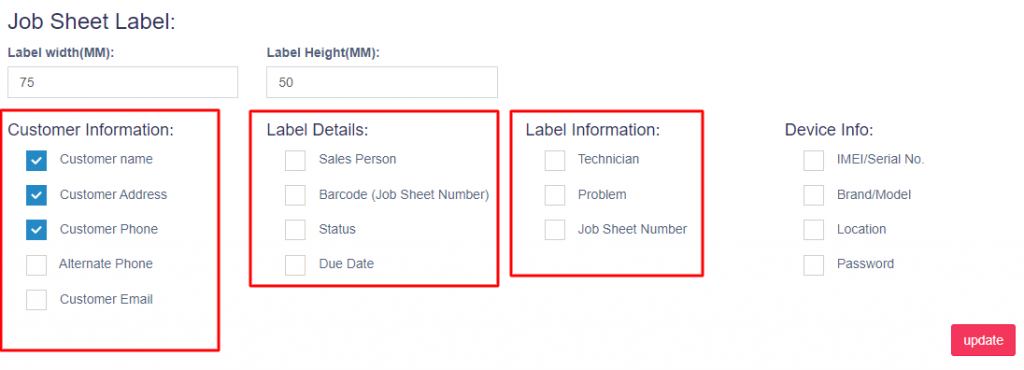
To display customer details in the job sheet, you need to enable it in Job Sheet > Settings > Jobsheet PDF & Label.
Enable the ‘Show Customer information‘ check box and add the customer name label next to it.
Scroll down and select the particular customer information to be displayed, like customer name, address etc.
Update and save the changes. Whenever a new job sheet is created the customer details will be displayed.

Printing Labels for Job Sheet:
Job sheet labels can be printed.
- Go to List Job Sheets > View > Print Label
Job Sheet Notification:
For sending notifications for job sheets, enable the required notification type while creating/editing a job sheet.
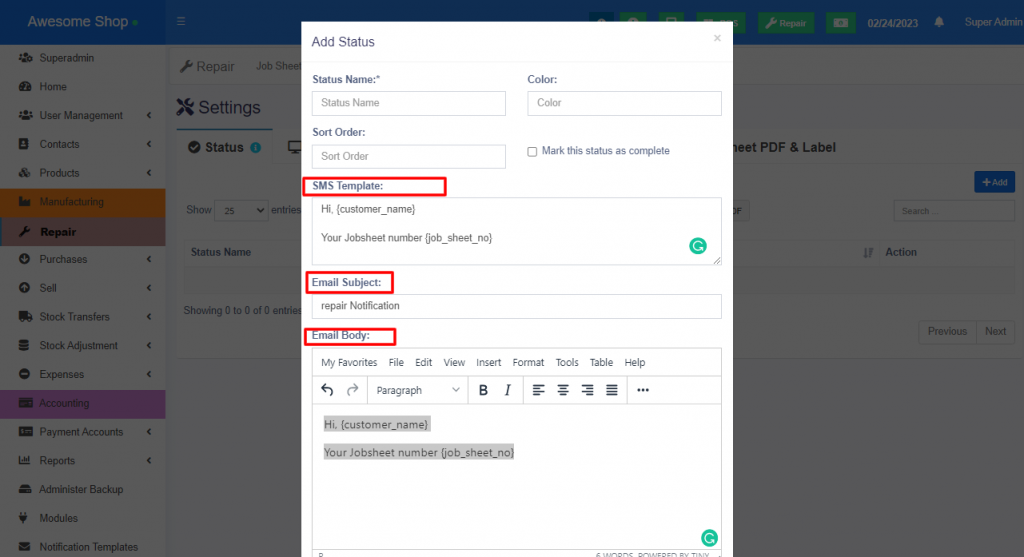
Also, make sure to add the template for notification in the repair settings -> Status. [if the template is blank, notification is not sent]
Repair Settings:
- Default Job Sheet Status: Default status which will be pre-selected in add job sheet.
- Job sheet number prefix: Prefix for Job sheet reference number which will be auto-generated.
- Default repair checklist: The Default checklist will be displayed for all devices & device models in add/edit job sheet screen.
- Product Configuration, Problem Reported By The Customer, Condition Of The Product: Pre-defined list of product configuration to be used in the add/edit of the job sheet.
- Repair terms & conditions: Terms and conditions to be displayed in the job sheet end.
Changing Label:
Job Sheet custom fields labels can be changed by going to Repair > Settings > Repair Settings > Label for job sheet custom field
Job sheet & Repair Status:
- Status can be added/edited from Repair -> Settings -> Status
- Status fields:
- Status Name: display name for status
- Color: Color for identification purposes.
- Sort Order: The order in which the status will be displayed.
- Mark this status as complete: Any status having this checked will be assumed as completed status. Job sheet or Repair having this status will be assumed as completed.
- SMS Template: Template for sending SMS with this particular status
- Email Subject, Email Body: Email template for sending for this particular status
Device Management:
- Add the devices you repair with the device name and description.
Device Model:
- Add all models for each device. By enter model name, selecting brand(optional), selecting device(optional)
- Repair Checklist: Add Pipe ( | ) separated checklist which can be used for quickly checking when accepting the device for repair.
NOTE: Sometimes maintaining a model can be difficult in that case add a model called Others which can be selected in the job sheet.
Job Sheet Status in Login Screen:
The status of job sheets can be checked directly from the login screen without requiring the user to log in. Follow the steps below to use this feature:
- Go to the Login Page and click on the Repair Status button.
- A popup will appear, where you can enter the Job Sheet Number. Providing the Serial Number is optional.
- Click on the Search button to view the job sheet status.
NOTE: If you want to disable this feature in Login screen, make SHOW_REPAIR_STATUS_LOGIN_SCREEN=false in .env file.
Video Demonstration:
Video Add
Version Log:
V 3.2 – Released Feb 6, 2025
- NEW: Added option to hide repair status check page in login screen. (Document Link)
- IMPROVED: Displayed contact id in list job sheet & list invoices. This makes it easier to search customers using their contact id
V 3.1 – Released June 24, 2024
- FIXED: Job sheet search not working from customer side.
V 3.0 – Released June 7, 2024
- NEW: Updated as per new design.
NOTE: You must update OnePOS to V6.x before updating the module to this version.
V2.0 Mar 2, 2023
- NEW: Compatible with One POS V5.0
- NEW: Added label printing option for repair job sheet in the view job sheet. Refer – Document Link
- NEW: Jobsheet label configuration options added to Repair> Settings > Job Sheet PDF tab.
- NEW: Jobsheet configuration options added to Repair > Settings > Job Sheet PDF tab
- IMPROVEMENT: Expected delivery date label was changed to the due date in the repair add/edit/view job sheet.
V1.7 Nov 18, 2022
- NEW: Quick adding of Brands, Devices & Device models directly from add job sheet screen.
- NEW: Default checklist added to repair settings. The Default checklist will be displayed for all devices & device models in add/edit job sheet screen. Present inside Repair > Settings > Repair Setting
- FIX: Job sheet checklist not showing in view job sheet, job sheet pdf & other places
V1.5 Nov 26, 2021
- Custom fields added to job sheets list
- Repair module add part search box input issue fixed
- Repair invoice print customer copy HTML code issue fixed,
- Delivery date issue in job sheet print fixed
V1.4 Oct 08, 2021
- Custom fields added to job sheets list
- Repair module add part search box input issue fixed
V1.3 Sep 08, 2021
- Permission issue fixed for job sheet.
V1.2 Aug 19, 2021
- Fixes in add/view job sheet.
V1.1 May 02, 2021
- Minor improvements & fixes throughout the module.
V1.0 March 04, 2021
- Repair charges added in customer copy invoice
- Repair check using mobile num added
- “use for repair” checkbox added on brand
- Print packing slip added to view sell, shipping documents shown in view sell
- Redirect to view job sheet added after parts/doc added
- Many other fixes & improvement
V0.9 Oct 29, 2020
- NEW: Added custom fields in Add/Edit/View job sheet
V0.8 Aug 25, 2020
- NEW: Job sheet for a repair with all information. Add/Edit/Delete
- NEW: Adding an invoice for a job sheet.
- NEW: Job sheet printing
- Improvement: Dashboard changes to show details as per the job sheet.
9.[ADDON] Contactless Menu & Catalogue Module
It is a new way of sharing the menu & showing products in restaurant & retail shops respectively.
Features:
- QR code generation based on the selected business location
- QR code download as image
- QR code color picker
- Product menu, grouped by categories.
- Product images, price, SKU, description, discounts & offers are shown in a beautiful way
Hide Display of Raw Materials:
To stop displaying raw materials in the Menu follow the below steps:
- Go to add/edit product
- Check the “Not for Selling” Checkbox
- Save it.
Products Not for selling will not be displayed in Menu & also not be displayed in POS/Sell screen.
Installation Steps:
Follow the steps as given in Module Management installation
Update Steps:
Follow the steps as given in Module Management Updating
Video Demonstration:
Version Log:
V 2.1 – Feb 18, 2025
- Improvement: Added missing translations for other languages
V 2.0 – Feb 12, 2025
- NEW: Updated as per new design.
NOTE: You must update OnePOS to V6.x before updating the module to this version.
V1.0 – March 2, 2023
- Compatible with OnePOS V5.0
V0.9 – January 12, 2023
- QR Code downloaded image not opening fix.
V0.8 – Sep 08, 2021
- Compatibility release for OnePOS latest.
V0.5 – October 29, 2020
- Added option to show logo in QR code
- Added option to show Heading & Sub-heading in QR code.
V0.4 – October 15, 2020
- Added menu to show all categories & easily go to any category.
10.[ADDON] CRM module
CRM stands for Customer Relationship management
Features:
- Followup
- Followup with Leads, customers & Supplier
- One-time followup
- Recurring followups
- Followup based on Pending/Partial/Overdue invoices
- Leads
- Add/Edit/Delete leads
- Convert leads to customer
- Leads source: Know which source (e.g google/facebook etc) leads are converting to more customers.
- Leads life stage: Know the life stage of lead (New/Qualified/Opportunity/ etc)
- Campaigns
- Email & SMS campaign
- Contact Login
- Multiple logins for customers & suppliers
- Contact can check previous orders, purchases, sales, payment & ledger.
- Proposal
- Create proposal templates with Subject, Body & attachments
- Send proposal to leads
- Report
- Follow-ups by user
- Follow-ups by contacts
- Lead to customer conversion
Adding contact login users
To add a contact login, Go to CRM > Contact Login tab.
Click the add button, and a pop-up window is shown
Provide the required details in the pop-up window and save it.
URL for contact login users of CRM
The same login page of POS is used for all users including contact login users of the CRM module – poswebsiteurl/login
Installation Steps:
Follow the steps as given in Module Management installation
Update Steps:
Follow the steps as given in Module Management Updating
Video Demonstration:
Coming soon.
Version Log:
V 3.0 – Released June 7, 2024
- NEW: Updated as per new design.
NOTE: You must update OnePOS to V6.x before updating the module to this version.
V 2.3 – Released January 30, 2024
- FIX: List recurring followup issue fixed
V 2.2 – Released August 23, 2023
- FIX: Add users from only permitted locations to leads.
- FIX: Removed the ‘add to location’ button from List Leads.
V 2.1 – March 24, 2023
- Contact Login fixed
V 2.0 – March 02, 2023
- Compatible with One POS V5
V1.8.1 – Jan 12, 2023
- Installation Issue fix
V1.8 – Nov 18, 2022
- General bug fixes & improvements.
V1.7 – July 13, 2022
- NEW: Commission to contacts of a customer
- FIX: Proposal email config issue fixed
- FIX: CC & BCC option in send proposal
- FIX: Dashboard permission
V1.6 – March 26, 2022
- NEW: Added follow-up category option
- NEW: Added date range & category filter in CRM dashboard follow-up data table.
- NEW: Added view links in CRM dashboard follow-up data table.
V1.5 – Nov 26, 2021
- NEW: Order request
- Fix – Settings permission issue
V1.4 – Oct 14, 2021
- Fixed module updating issue.
V1.3 – Oct 08, 2021
- Order request from customer login
- CRM settings added to enable/disable order request
V1.2 – Sep 02, 2021
- Compatibility fix with latest version of OnePOS.
V1.1 – May 02, 2021
- Minor fixes & improvements
V1.0 – March 04, 2021
- last/upcoming follow up added on lead
- campaign feature improvement
- Converted by and converted on added to lead to customer conversion
- Crm reports added
- followup calendar converted to datatable
- Sell sub status added to api
- Added query param to api paginate response
- Contact person added to add a contact form
- Miscellaneous fixes & improvements
V0.8 – January 13, 2021
- Fixes & Improvements
V0.7 – December 21, 2020
- Changes schedules to “Followup”
- Added an option to add “Followup” in list leads
- In dashboard added the source conversion %
V0.5 – October 21, 2020
- The initial version released.