11.[ADDON] API or Connector module
API or Connector Module for OnePOS
This module provides the API for use in OnePOS
API Documentation:
We’ve detailed API documentation which includes all API endpoints, input request output response, and more.
It is included with the API module which you’ll be getting upon purchasing.
After purchasing & API module installation, just go to yourwebsite.com/docs, and there you’ll find the documentation
API Documentation showing 404 error:
- Solution 1: Follow the steps mentioned below in “Additional update steps”
OR - Solution 2: If you’ve SSH access or terminal (cmd line) access to the server or using localhost, go inside pos directory and run the below command:
php artisan scribe: generate
OR - Solution 3: Download this zip file, upload it inside pos/public directory, and unzip it there.
Try any of the above methods, method 3 is the easiest.
After doing open your website document, hopefully it should work now.
Features:
All the APIs provided are mentioned in the official API documentation
Installation Steps:
Follow the steps as given in Module Management installation
Update Steps:
Follow the steps as given in Module Management Updating
Additional update steps:
This step needs to be followed after updating OnePOS:
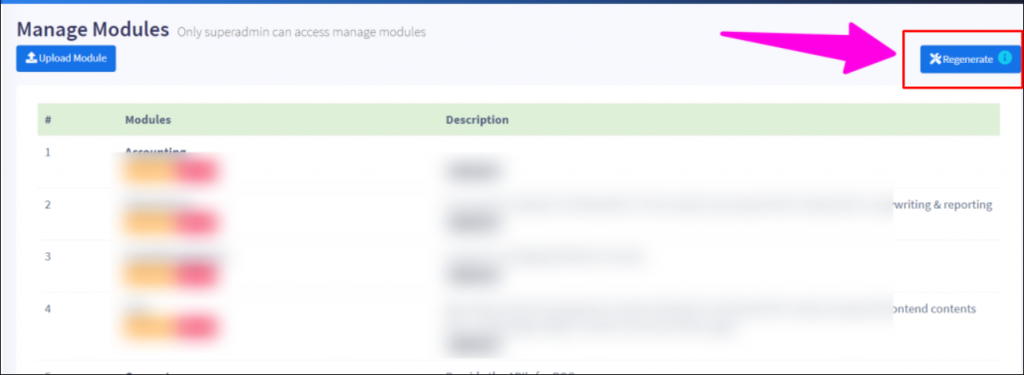
- Login with superadmin account
- Go Modules screen in the sidebar
- Click on the “Regenerate” button as given in the screenshot below.
Generating client id & Client secret:
- After installing the API-Connector module login with superadmin username & password
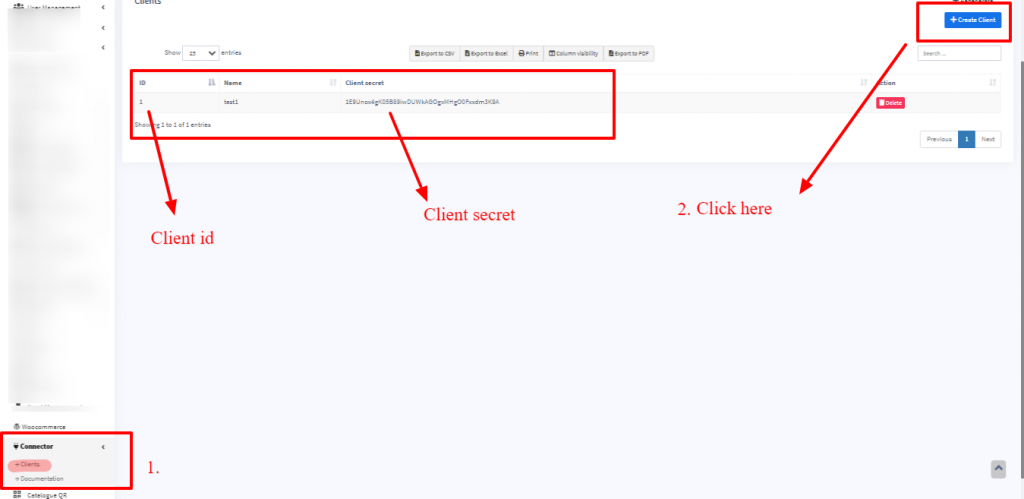
- Go to Connector -> Clients
- Click on “Create Client” button and it will show a popup.
- Enter the name (any name is fine) & Save
- In the list of clients, it will show the id, & secret. Check screenshow below.
NOTE: Only the superadmin users can view the Connector -> Clients page. So if any other users need a client id or secret then the superadmin user should generate and send it to them.
Changing Logo in the API documentation:
Replace the logo present inside pos\public\docs\images\logo.png
Video Demonstration:
Version Log:
V 3.0, – Released June 7, 2024
- NEW: Updated as per new design.
NOTE: You must update OnePOS to V6.x before updating the module to this version.
V2.2, – Released January 30, 2024
- NEW: Option for service_staff in add/edit sales sell line
- FIX: Permission issue fixes for various APIs
V2.1, – Released June 6, 2023
- FIX: Fixed add/edit sale issue in API.
V1.8, – Released December 1, 2022
- Undefined issue in sales API fixed
- Service Staff in sales API improved
V1.7, – Released Feb 2, 2022
- Permission checks added to sell list API
- Sell permission checks added to sell list API
- Multiple payment status filters added to sell list API
- Expense subcategory API endpoint added
V1.5, Nov 26, 2021
- Currency precision and quantity precision added to business setting API response
- Sending lot details in sell list and product list API, if request parameter is set to true.
V1.4, Oct 08, 2021
- Source field added to sells
- Filter by source implemented on sell api
V1.3, Sep 08, 2021
- Added discounts on products/variations api
- Added reset password api
- Added public invoice URL in sales
V1.1, Aug 18, 2021
- User register API added
- Other API improvements
V1.0, May 02, 2021
- Fixes & improvements in API
V0.8, March 04, 2021
- Permissions list added to logged in user details API
- API created for CRM->follow up & lead list
- additional follow-up info field added in API & filter parameter name changed in the list follow up API
- pagination added in list of supplier/customer/lead API
- Search and order by added in supplier/customer/lead list API
- Permission check added to list leads API
- sorting added on list follow-up API
- status/follow up type filter added for list follow up API
- pagination & customer info added in the list follow up API
V0.7, December 21, 2020
- Various minor updates, fixes & improvements
Initial Release – V0.5, Nov 11, 2020
- Initial release.
12.[ADDON] CMS Module (Content Management System)
CMS (Content Management System) module for OnePOS
Installation of CMS module:
Check this document having installation steps: Installation Steps
Site Details:
Building Landing page:
Adding new pages:
While adding a new page, it can be listed as a Separate Page or as a Dropdown in Menu Bar.
Go to CMS module >Pages and add a new page.
Changing name for dropdown pages:
You can customize the names for dropdown pages.
To do this,
1. Go to CMS Module > Site Details > Buttons
2. Here you can find a Page Dropdown Text label where you can add your dropdown page name.
Blog Management:
Adding support link in CMS module:
To add the official support website of OnePOS in your system using CMS module follow the steps below.
In your CMS module go to pages and add a new page(eg: Support/Help).
Add additional information or content to that page if needed.
Alignment Issue in NavBar:
If the list of pages in the navigation bar(menu bar) is not aligned properly then follow the steps mentioned in the document(link given below).
DocumentLink
Version Log:
V 2.1 – Released Feb 7, 2025
- NEW: Option when creating a page to show in the dropdown or directly as top menu.(Document Link)
- NEW: “Page” label that is shown for extra pages can now be renamed. (Document Link)
- Other minor design improvements & changes
V 2.0 – June 7, 2024
- NEW: Updated as per new design.
NOTE: You must update OnePOS to V6.x before updating the module to this version.
V 1.2 – August 23, 2023
- FIX: The issue in the register button on creating new pages is fixed.
V1.1 – April 14, 2023
- Improvement: Remove length check from mobile/contact number field in site details.
V1.0 – March 02, 2023
- Compatible with One POS V5.
V0.6 – Nov 18, 2022
- Improvement: If user is logged-in then display dashboard link instead of login link.
V0.5 – Oct 2, 2022
Initial release
13.[ADDON] SpreadSheet Module
Spreadsheet Module
Create powerful spreadsheets inside OnePOS.
Features:
- Spreadsheet Editor: Create powerful spreadsheets inside OnePOS using an inbuilt feature-rich spreadsheet editor.
- Import & Export: Import & Export spreadsheet
- Sharing: Share it with other Roles or other Users
- Organise: Organise spreadsheet into folders using the folder structure, with easy searching & one-click expand/collapse.
Installation Steps:
Follow the steps as given in Module Management installation
Update Steps:
Follow the steps as given in Module Management Updating
Once the spreadsheet module is installed, it will be shown in the sidebar menu.
Creating Folders:
Folders can be created in the spreadsheet module.
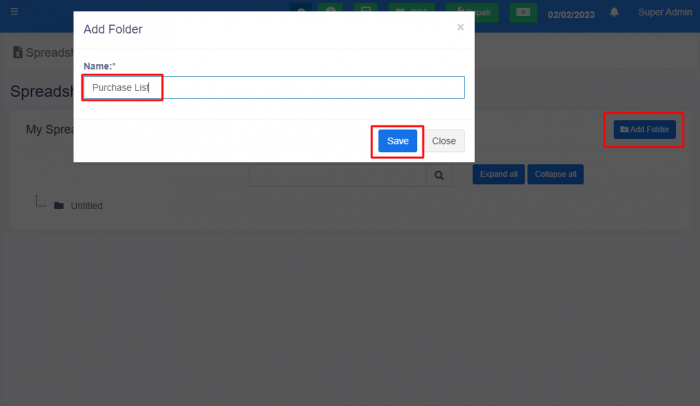
To create a folder, click the add folder button, provide an appropriate name to the folder, and save it.
The created folders will be displayed as a tree structure.
Creating Spreadsheets:
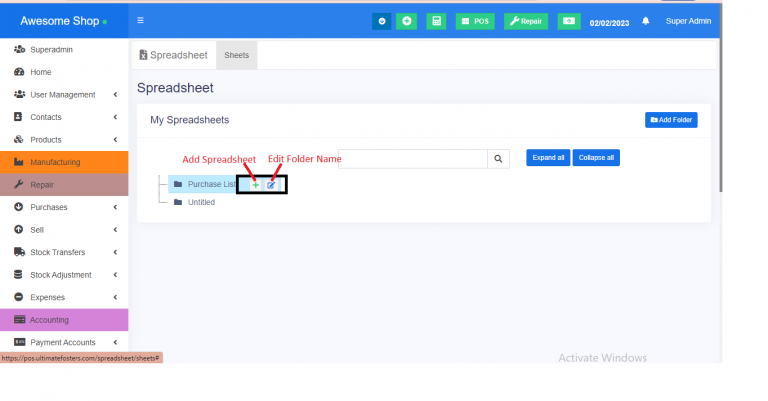
Once the folder is created, an option to create a spreadsheet under each folder is provided.
You can click the ‘+’ symbol and add a spreadsheet.
The spreadsheet will be similar to google Sheets. You can add sheets, download or save sheets and upload excel files.
Editing Folder Name:
You can click the edit symbol and edit a folder name.
Version Log:
V 2.0 – June 7, 2024
- NEW: Updated as per new design.
NOTE: You must update OnePOS to V6.x before updating the module to this version.
V1.0 – March 02, 2023
- NEW: Compatible with One POS V5.
- IMPROVEMENT: Always show spreadsheet action buttons (instead of showing on hover).
- FIX View spreadsheet showing wrong data issue fixed.
14.[ADDON] Ai Assistance Module
[ADDON] Ai Assistance Module for OnePOS – Advance
Installation Steps:
Follow the steps as given in Module Management installation
OpenAI API Key:
Generating API Key:
First generate OpenAI keys from this link: https://platform.openai.com/account/api-keys
Adding Key in .env file
Use the generated keys in the .env file by adding these 2 keys:
- OPENAI_API_KEY=
- OPENAI_ORGANIZATION=
Token Pricing:
This module used Davinci model, as of writing this guide, the price for this model is: $0.1200 / 1K tokens
1K Token ~= 750 words in English
If using SaaS, you’ll have to add the API key and assign the number of tokens that can be used in each package. So, in the package price include the price for number of tokens that will be used in that package.
Update Steps:
Follow the steps as given in Module Management Updating
Once the spreadsheet module is installed, it will be shown in the sidebar menu.
Generating fine-tuned texts using AI Assistance
- Under each section, there will be a text box where you can submit a simple prompt or sentence.
- You can start with an example like the following.
- Example for product description: Notebook – A 200 pages notebook with good paper quality.
- Press the ‘create’ button and the generated text will be displayed. You can use it on required screens.
Video Demo
Video Add
Version Log:
Released – V 2.0 June 7, 2024
- NEW: Updated as per new design.
NOTE: You must update OnePOS to V6.x before updating the module to this version.
Released – V1.3, January 30, 2024
- IMPROVEMENT: Change the OpenAI model to “gpt-3.5-turbo-1106“
Released – V1.1, April 12, 2023
- NEW: Supports 15+ languages including English, Spanish, Albanian, Hindi, Dutch, French, German, Arabic, Turkish, Indonesian, Pashto, Portuguese, Vietnamese, Chinese, Romanian, Lao.
15.[ADDON] HMS (hotel management system)
Installing the HMS Module:
Before installing the HMS module, make sure you’ve installed the latest version of OnePOS.
Follow the steps for installing a module as mentioned in the documentation Documentation Link
Features in HMS Module:
- Booking
- Adding and booking rooms along with amenities.
- Adding price for rooms based on dates and number of guests.
- Mark the bookings in the calendar sheet.
- Room Management and Pricing
- Adding details and price for extras.
- Reserve rooms as unavailable.
- Adding coupons with coupon codes and discounts.
- Dashboard and Reports
- Generating Reports.
- Dashboard with all details.
- Notifications
- Sending automatic notifications to customers on booking.
Adding rooms in the HMS Module:
Rooms can be added to the HMS module with the following details
- Accommodation type
- Maximum number of Adults/Children
- Maximum number of Occupancy
- Custom room number
- Selecting Amenities
- Description
To add a room, follow the steps below
Steps 1: Navigate to the Rooms tab in the HMS module( HMS module > Rooms)
Step 2: Click the Add button.
Step 3: Provide the required details as mentioned above and click save.
Setting price for rooms:
For each type of room added, the price can be set.
Price can be set based on three categories.
Setting default price for rooms:
While setting the default price, this price is applicable for all days of the week.
Setting different prices for each day of the week:
Sometimes the price may vary for each day, for example during the weekend the price can be higher than weekdays.
For this purpose, you can click the check box, Set different prices for each day of the week, and set different prices.
Setting different prices based on number of guests:
Sometimes the price may vary based on the number of guests.
For this purpose, you can click the check box, Set different prices based on the number of guests, and set the prices.
In order to set the price, follow the below steps
Steps 1: Navigate to the Prices tab in the HMS module( HMS module > Prices)
Step 2: Select the room for which the price needs to be set.
Step 3: For each day/guest provide the price in the relevant fields provided.
Booking rooms in the HMS module:
Rooms can be booked by providing the customer and payment details.
While booking rooms coupon codes can be added to get the benefit of coupon discounts.
To add a room,
To add a room, follow the steps below
Steps 1: Navigate to the Booking tab in the HMS module(HMS module > Booking)
Step 2: Click the Add button.
Step 3: Provide the required details and click save.
Calendar Screen:
Bookings can be directly marked on specific dates in the calendar screen. On clicking on specific dates, it will directly take you to the ‘Add Booking’ page.
Extras:
Some customers may avail some extra features during booking, like charges for transportation or food. Such charges can be added under ‘extras’.
If these extras are selected while booking rooms the price added for such features will be added to the amount for the room.
Extras can be applied under certain conditions.
- Per Day – The amount added for extra will be applicable for a day (For example, the amount of food is $25 per day)
- Per Booking – The amount added for extra will be applicable for the whole booking (For example, the amount of food is $25 in total for that booking, irrespective of the days)
- Per Person – The amount added for extra will be applicable for each person added to the booking (For example, the amount of food is $25 for 1 person. If 2 persons are added then the amount for food will be calculated as $50)
- Per Day/Per Person – The amount added for extra will be applicable for a day for one person (For example, the amount of food is $25 per day for one person. If 2 persons are added for two days then the amount for food will be calculated as $100 )
Reserve rooms as unavailable:
For reserving rooms before booking them, you can use this feature.
In the Unavailable tab, press the Add button. Here you can provide the room number and dates on which they are reserved.
Once the added date period has elapsed, the room will be automatically made available.
Coupons:
A coupon code discount can be provided while booking rooms.
To add the coupon code and discount amount, use the Coupon Tab.
The coupon code can be added while booking rooms and the discount amount will be deducted from the actual amount during payment.
Reports:
Reports on total bookings confirmed, canceled, and pending, the number of guests who arrived, etc can be viewed in the Reports Screen.
Amenities:
For each room, additional amenities like AC, extra cots, etc can be added here.
To add amenities, follow the steps below
Steps 1: Navigate to the Amenities tab in the HMS module(HMS module > Amenities)
Step 2: Click the Add button.
Step 3: Provide the name of the amenity and description. Click save.
Customer Email Notifications:
Email notifications can be sent to customers, on booking a room. This will help users to have the booking details on their own device as an intimation.
To enable it, Go to the settings Tab. Here you can find the Available Tags to be added to the email body.
You can also add customized text along with the available tags.
For sending automatic notifications, enable the “Auto Send Email” check box.
Video Demo:
Version Log:
Released V2.1, July 13, 2024
- FIX: Issue with adding of extras
Released V2.0, June 7, 2024
- NEW: Updated as per new design.
NOTE: You must update OnePOS to V6.x before updating the module to this version.
Released V1.1, February 10, 2024
- FIX: Syntax issue in some files.
Released V1.0, January 30, 2024
- NEW: Added option for check-in & check-out in bookings.
- IMPROVEMENT: While adding the booking date change will reset the booking details so that there is no availability problem.
- FIX: Permission for setting issue
Released V0.7, Nov 9, 2023
- IMPROVEMENT: Booking screen reset selected rooms & other things on changing date
- IMPROVEMENT: Added discount on booking screen
- IMPROVEMENT: Permission improvements
Released V0.6, Oct 23, 2023
- IMPROVEMENT: Added new permission for bookings payments add/edit/delete payments.
- Other general fixes & improvements
Released V0.5, Oct 13, 2023
- Initial Release
16.[ADDON] Gym Management Module
Installing the Gym Module:
Before installing the Gym module, make sure you’ve installed the latest version of OnePOS.
To install this module follow the steps for installing a module as mentioned in this documentation Documentation Link
Features in Gym Management Module:
Members Management
- Add/Edit/Delete members
- Members profile
- Generate & print members’ card
- Track member’s health record
- Specify members diet
Subscription Management
- View list of members’ subscription
- Package subscribed, start-end date & status of subscription
- Subscription payment status, add/edit payments for subscriptions
Attendance
- Daily in-out time of members
Packages:
- Create/Edit/Delete packages with it’s name & price.
- Package duration as Monthly, Quarterly, half-yearly, Yearly, Lifetime
- Include classes in packages
Classes:
- Create/Edit/Delete classes
- Specify class start-end date (optional)
Video Demo:
Coming soon.
Version Log:
Released V0.6, Feb 18, 2025
- Fixed some internal issues.
Released V0.5, Feb 11, 2025
- Initial Release