1.Module Licensing
License Options:
For each module, there are 3 varied options available.
Option 1: 1 SaaS site, free update, SaaS Compatible
With this option, you can use the module in one domain and with the super admin module for adding it to packages.
Option 2: 3 sites, free update, SaaS-Not Compatible
With this option, you can use the module in 3 domains, and can’t be used with the super admin module for adding it to packages.
Option 3: 1 site, free update, SaaS-Not Compatible
With this option, you can use the module in one domain and can’t be used with the super admin module for adding it to packages.
2.Manage Modules (Install / Uninstall / Delete / Update modules)
Manage Modules:
Manage modules helps you to Install, Uninstall, Delete, & update modules. You will also find recommendations for any new modules available.
Pre-conditions:
Only superadmin users can manage(Install/Uninstall/Update/Delete) modules. So first make a user a superadmin by following the steps given below:
Creating a Superadmin user:
- Login to the server from Cpanel or DirectAdmin or Plesk or Filezilla (FTP) or similar panels.
- Open .env file with the file editor. .env file is present inside the OnePOS directory
- Inside the env file, you will find “ADMINISTRATOR_USERNAMES” configuration. Add the username of the user which you want to make as superadmin.
For example, if you want “user1” to be superadmin then add it like below:
ADMINISTRATOR_USERNAMES=”user1″
NOTE: user1 mentioned here is for example only and the username is case sensitive. - You have to add an already existing/signed-up username here. To add multiple users as superadmin you can add them comma-separated.
ADMINISTRATOR_USERNAMES=”user1,user2,user3″
Installing Module:
Before starting: Make sure you have followed the pre-conditions as given above.
- Download the module code from your account (codecanyon or OnePos website)
- Unzip the downloaded code. Inside that, you will find the module zip file, upload this zip file by clicking on Upload Module.
NOTE: If it displays some error then you can unzip the module zip file and place it directly inside the Modules folder (pos/Modules folder) - After uploading it will show in the list of modules, click on the Install button
- On clicking the Install button, the module will get installed or will ask for relevant details
NOTE: If it shows an ‘invalid license’ error double-check the username provided by you.
Updating Module:
Before starting: Make sure you have followed the pre-conditions as given above.
- Download the new code from codecanyon or our website.
- Unzip it, inside that, you will find another zip file.
- Upload the zip file using the Upload Module option.
- On uploading it will show the Update button, click it and it will get updated.
Deleting or Uninstalling Module:
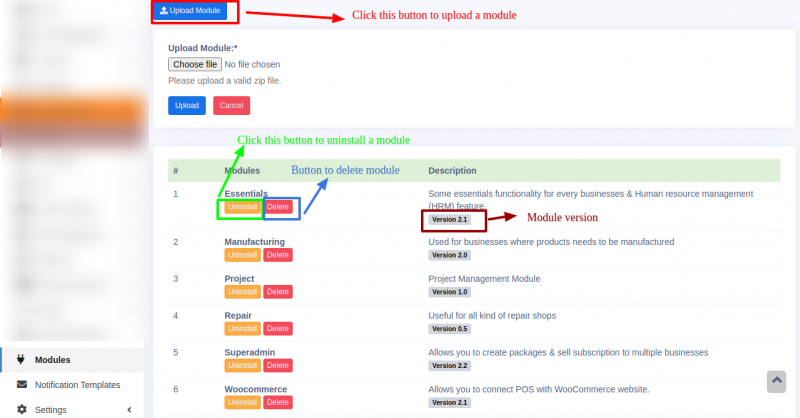
Click on the relevant button to delete or uninstall the module.
Check the screenshot below for the details.
Module not appearing in sidebar:
Sometimes you may install the module but it will not appear in some businesses.
This happens because the corresponding module will not be enabled in the package subscribed by that business. You should enable the module in the required package.
The Module Menu is not appearing in the sidebar (Couldn’t find the module option in the sidebar menu):
The module option will only be displayed for users logged in as super-admin.
If you are logged in as any other user, the module menu will not be displayed.
Follow the steps below to rectify it
- Log in using the super-admin login credentials.
- If you have not added the super admin user, add it by following the documentation steps -> Super-admin Document
3.Allowing Module Access for Users
Allow users to access modules:
Why is the module not shown in the sidebar for a user even after it’s enabled for that user’s role?
Sometimes, even if you have enabled access for a particular module, the user may not able to view it in the sidebar menu.
This occurs because the user’s subscription package might not have that specific module enabled.
To enable it,
- Go to Superadmin > Packages. Click the edit button of the required package.
- Scroll down, and enable the checkbox for ‘needed modules’ and ‘update existing subscriptions’.
- Save the changes.

NOTE: If users want to install the module in their own domain they need to purchase a separate license for them.
Why is the module not shown in the sidebar for a user after enabling it in user’s role and package?
Make sure that the package update is successful.
Refer to the document – Updating-Packages
4.[ADDON] SaaS & SuperAdmin Module for OnePOS – Advance
-
What is SaaS or Superadmin Module?
- SaaS is Software as a service. (https://en.wikipedia.org/wiki/Software_as_a_service)
- With this module, you can sell OnePOS Advance as a subscription package to users.
- You can see all the businesses registered in the POS, Add a New business, Deactivate a business, or delete them completely.
How is this SaaS module different from OnePOS advance
Some users asked us this question, so we thought of mentioning it here
- OnePOS advance is the main POS software, which is required if you need POS
- SaaS/Superadmin Module is an Optional extension to it. With SaaS/Superadmin module you can sell subscription packages to businesses. It can help you be Profitable/ Monetize your POS application.
Features in SaaS & Superadmin module:
-
Packages:
- Create Unlimited subscription packages
- Activate, Deactivate or Delete Packages
- Trial Days
- Free Packages
- Daily / Monthly / Yearly Interval selection
- Limit number of locations, active users, Products, Invoices,
- Superadmin only use packages (Private packages for superadmin)
- One-time use package only (Use Case: Free package can be enabled to use once only).
- Force active new packages: While activating new packages, the currently running package will be stopped automatically.
- Mark Package as Popular: Most used packages can be marked as popular in the edit package screen.
- Assigning business locations: Business locations can be assigned to a package. Only these locations can use the package.
- Custom URL in package subscriptions: Custom URL for packages are external URLs. Using this link customers can contact you for a customized package for them. For example, something like “Contact Us” page for a Higher Enterprise package.
-
Manage Businesses:
- Add, View, Deactivate or delete businesses.
- View business subscription logs
-
Payment Gateways:
- Stripe
- Paypal
- Offline payment
-
Subscriptions
- Subscriptions expiry notification.
- Superadmin can edit business subscription start/trial/end date
- Subscription invoice with print option
- Allocate subscriptions to businesses directly from superadmin
-
Settings:
- Company-based Username.
- SMTP/Email setting
- Backup setting
- Payment Gateway Settings
- App default settings
- Communicator module to send email to all/selected businesses owners
- Intuitive dashboard to give details of your businesses.
- One-Click installation
- Complete setup guide.
- Company-based Username.
- Subscription/Pricing landing page (hidden in demo)
- Compatibe with WooCommerce addon.
Login as a customer:
Using a super admin login, the admin can log in as a customer. this feature is available in version 4.7.8 and above.
To enable this feature, Go to Superadmin > All Business > Action > Manage > Scroll down to Users list > Click on “Login as ” button
Installing the SaaS/Superadmin Module
Installing the Superadmin module to OnePOS is easy as cake. Make sure you meet the below requirements:
- Since this is not a standalone application you will need OnePOS (Download from here)
- OnePOS – Advance Version 2.7 or higher installed. For OnePOS installation step refer to this documentation.
Installing:
- Follow the preconditions as given in here
- Follow the module installation steps as given here
Setup:
- Superadmin Settings: Go to superadmin setting and add the relevant details.
- Packages: Go to packages and new packages. You can also edit/delete/deactivate packages.
- Payment Gateway: Setup payment gateways as below.
Creating Packages:
- Go to superadmin – Packages for adding new packages.
- Add Name, Descriptions, and other details.
- If you need to assign infinite Users, Locations, Invoices, Products just make the number as 0.
- If you want to create a Free package make the price 0.
- Trial period is the period in which you can issue a refund to the customer if the customer is not satisfied. The refund must be done manually from your side.
- Private Superadmin only: If the package can only be seen by superadmin then select this. This package will not be shown to other user roles.
- One-time-only subscription: Select this option if the package can only be used one time by a business. For example: Free package can only be used once, businesses will not be able to subscribe it more than once.
- Enable custom subscription link: Used when you want to give a custom URL to package subscription button, for example: for Higher-Enterprise package you can give a contact us link in the package subscription so that they contact you for an enterprise package.
Using Packages:
- After the user subscribes to a package from Settings -> Package Subscription, it will appear on the super-admin panel in the package subscription screen.
- Now if the super admin sets the package subscription’s status as “Approved” it will be set as a running package.
Updating Packages:
- You can edit any package to update them.
- If you want the package update to be applied to all existing businesses who have already subscribed, then you have to select “Update existing subscriptions” checkbox in the edit screen.
NOTE: update will be applied only to the subscription which has not expired.
Expiry Notification for Packages:
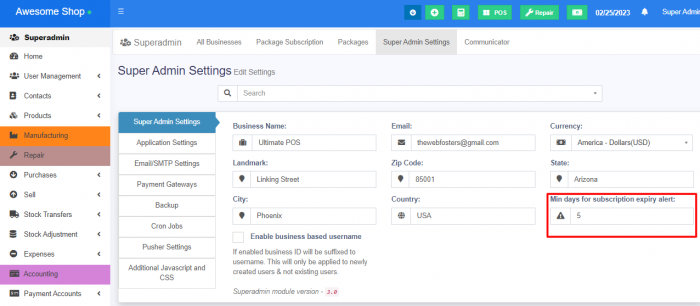
- Expiry notification for pacakges can be sent to clients.
- The minimum number of days before the expiry date should be mentioned in the field provided in the superadmin settings.
Force Active New Packages:
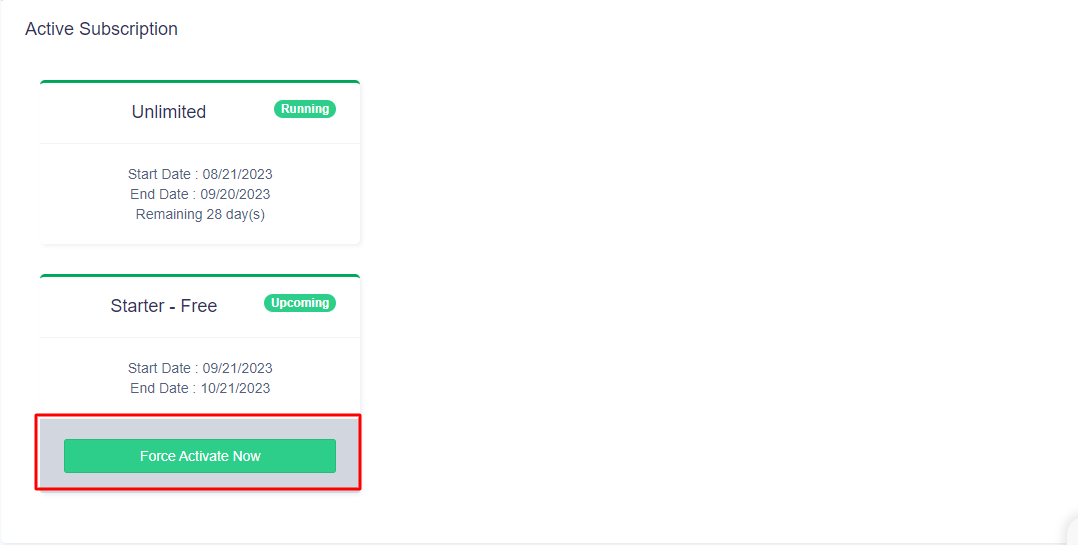
When a package, for example, ‘starter‘ is running currency and the user has to switch to a new package, this feature will be useful.
To activate a new package when the current package is still running, follow the simple step
Step 1: Subscribe a package from the available list in the Settings > Package Subscription screen.
Step 2: Once subscribed, press the force activate button, to activate it as the current package to use it.
Payment Gateway:
Offline:
Offline gateway can be enable/disable from Superadmin -> Superadmin Settings -> Payment Gateway -> Enable Offline Payment
Stripe:
Stripe is configured out-of-box with OnePOS.
- Login to you stripe account. Go to API
- There you will find stripe public key and private key. You can also click on “Test” mode.
- Go to Superadmin -> Superadmin Settings
- Add the “Stripe Pub Key:” & “Stripe Secret Key:”
- And stripe is ready to use.
- NOTE: If you’re using stripe in Demo Mode, make sure to enable “Live” mode and provide the live keys. More details here: https://stripe.com/docs/keys.
- If you want you can customize the view file code for stripe. The file path for the view file is given below.
pos\Modules\Superadmin\Resources\views\subscription\partials\pay_stripe.blade.php
Paypal:
PayPal is configured out-of-box with OnePOS.
- Obtain your API Username, API Password & API Signature/Secret.
- To obtain this refer to this official documentation on API Signatures
- Use “NVP/SOAP API integration (Classic)“
- Go to Superadmin -> Superadmin Settings
- Select the Paypal Mode (Live or Sandbox)
- Enter the API details in live or sandbox: “API Username”, “API Password”, “API Secret” (API secret is same as API signature)
- NOTE: to accept payment from customers you must make the mode to live and provide the like “Live API Username”, “Live API Password”, “Live API Secret”. Sandbox is for testing purposes only.
- ERROR: If you get an error in during the payment using paypal, kindly follow the steps mentioned below.
- Login on `https://www.paypal.com`
- Visit `https://www.paypal.com/businessmanage/credentials/apiAccess`
- Click on Manage API credentials under the section Custom checkout experience > NVP/SOAP API integration (Classic). Refer to this screenshot – https://prnt.sc/unoHpy9gGLHY
- Choose `Request API signature` & click Agree and Submit. Refer to this screenshot – https://prnt.sc/CCZx5pnzpORp
- Copy the api username, password & signature & use it as paypal credentials (api username, api password, api secret respectively). Refer to this screenshot – https://prnt.sc/ILTX3BWkuU_O
Razorpay:
Razorpay payment gateway is used in India.
NOTE: To use this payment gateway first make sure in the Superadmin settings you have set Currency to INR, if some other currency is used then it will throw some error in the payment screen.
Steps for setting it:
- Register an account in razorpay.com
- Go to Settings -> API keys in razorpay website. And click on “Create key“. Copy the generated key.
- Put the key id and key secret details in POS superadmin Payment gateway settings.
- On the razorpay website itself, you can select the Test mode or Live Mode.
Pesapal:
Pesapal is mostly used in Kenya and nearby countries.
NOTE: To use Pesapal payment gateway first make sure in the Superadmin settings you have set Currency to KES, if some other currency that is not supported by pesapal is used then it will throw some error in payment screen.
Steps for setting it:
- Register an account in pesapal.com
- Get the API details by clicking on “Resend Code” button present in pesapal dashboard. On clicking this button you will receive the Customer key & secret in your registered email.
- Go to POS Superadmin Settings -> Payment Gateways, enter the pesapal Consumer Key, Consumer Secret & Is Live as true.
- Now go to Webhook in pesapal and add the below:
- Website link: www.yourwebsite.com
- Webhook: www.yourwebsite.com/pesapal-ipn
Note: Since this uses webhook testing in localhost may not work, you have to test it in the hosting server.
Pesapal not working shows 500 error:
- Make sure you’ve provided all the details correct as mentioned above.
- Apply this pesapal patch
Flutter Wave:
- visit: https://dashboard.flutterwave.com/login
- Go to Settings menu > API tab
- generate API keys
- Add these keys in Superadmin settings -> Payment gateway -> Flutterwave
Paystack:
- Visit: https://dashboard.paystack.com/#/login
- In paystack: Go to Settings menu > API Keys & Webhooks tab
- In paystack: generate keys and save changes
- In paystack: Web hooks enter the Callback URL. The callback URL will be
HTTP(s)://yourwebsite.com/subscription/post-payment-pay-stack-callback
- Go to Settings menu > Preferences tab, select the type of payments you want to accept, and make other preferences
- Get the keys and add them in OnePOS superadmin settings -> Payment gateway -> Paystack.
Offline:
- For offline payment, the application sends a notification email to Superadmin so that they can approve it. So it needs a valid email setup (or SMTP setup), else it will throw an email error.
- Emai/SMTP setup is done during the OnePOS installation process. But if you haven’t configured it properly there then you can follow the details as described here.
- Email & SMTP setup
Email/Smtp setting
Email/Smtp setting
- Go to Superadmin -> Superadmin Setting -> Email/SMTP setting
- Select mail drive as SMTP.
- Add all SMTP details.
Enable new business registration email: Email will be sent to superadmin on new business registration.
Enable new subscription email: Email will be sent to superadmin on any business new subscription.
Enable welcome email to new business: Welcome email will be sent to new businesses.
Allow other businesses to system SMTP
- With this option other businesses will not have to configure the SMTP details, instead, they can use the system or superadmin SMTP.
- Enable – Allow businesses to use Superadmin email configuration
- Save it.
- Now in any business go to Settings -> Business Setting -> Email setting, and here you’ll find an option to use the system SMTP, enable it and save.
Updating to new Version
Before updating make sure you have the latest version of OnePOS.
Also, take/download a Backup using our Backup feature.
Business-Based Username:
With a business-based username, every username for a business will be suffixed with an internally generated business id. This will allow different companies to use the same username.
To enable it to go to Superadmin -> Superadmin Settings & check the ” Enable business based username” checkbox and click on the Update button.
This will activate this feature.
Note: This will not change existing usernames. All new usernames created will have this effect.
Now when a new user is added from Users – Add User, it will display a modified username below the username field. This username should be used for login by this user.
Manage User:
To manage user using SaaS module, Go to Superadmin -> All Business -> Manage.
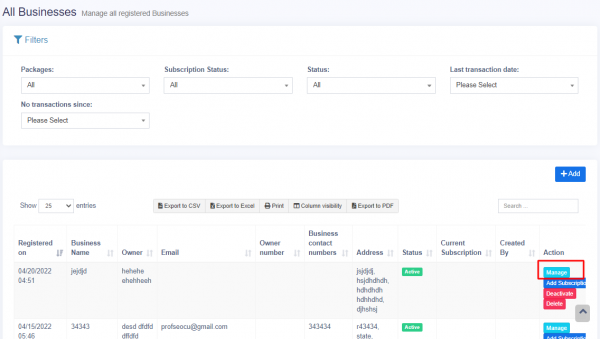
Here you can change the password of each user.
Deactivate or delete business:
You can also deactivate or delete a business from the SaaS module.
Go to Superadmin-> All Business -> Deactivate/ Delete.
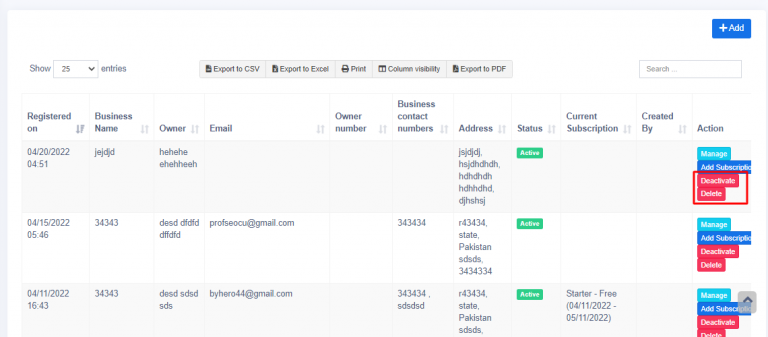
Deleting a business will delete all its related transactions.
Editing existing subscription: Star-End date & Status:
If you want to change the subscription status of a business or change the start-end date of a business follow this step:
- Go to Superadmin > Package Subscription menu
- Here you’ll see a list of package subscriptions by all businesses.
- Click on Edit button to change the Start-End & Trial end date
- Click on Status to change the status to Approved, Waiting, Declined & edit transaction id.
Coupon Code for Packages:
Coupons can be provided for customers for package payments.
Adding Coupons Code:
To add a coupon code, follow the steps below
Step 1: Go to Superadmin > Coupon Tab. Click the add button to add a new coupon.
Step 2: Provide the details as explained below
Coupon Code: Provide a unique code for each
Discount Type: Discount type can be fixed or percentage
Expiry Date: The coupon code will be valid until this date
Step 3: Apply conditions
The coupon can be applied to specific packages and business locations.
Using Coupons Code:
Step 1: Access Package Subscription
- Navigate to the “Settings” section.
- Click on “Package Subscription.”
Step 2: Initiate Package Payment
- Within the Package Subscription section, locate and select the package you want to subscribe to.
- Click the “Pay” button to begin the payment process.
Step 3: Apply Coupon Code
- On the payment page, you’ll find an option to add a coupon code.
- Click on the designated field to enter your unique coupon code.
Step 4: Apply Discount
- Once you’ve entered the coupon code, the system will automatically apply the associated discount amount.
Step 5: Complete Payment
- Review the payment details to ensure the discount has been applied accurately.
- Proceed to complete the payment process by following the provided instructions.
Other modules not showing to other users except Superadmin:
If you’re already using other modules (for example CRM or Essentials or Other) before using SaaS-Superadmin then after installing SaaS modules, those modules will not be shown to other users.
Steps to follow:
- Other modules will not be shown to any other users because after installing SaaS module, all businesses need a subscription.
- So Login with superadmin & create a package or edit a package
- In the add/edit package “check” the modules and check the “update existing subscription”
- Save the package
- All users subscribed to the package will now have access to all modules you added in this package.
Adding Custom URL on Packages:
Custom URLs for packages are external URLs with which you can redirect the customers to any desired page. For example, the “Contact Us” page of your website. So when users click it, it will direct them to the respective page(eg, URL of your website contact page).
- NOTE: The URL must be an active URL (eg, URL of your website’s contact page ).
To add custom URL on packages, follow the steps mentioned below
- Step 1: Go to Superadmin > Packages.
- Step 2: Click the Edit Option of the required package.
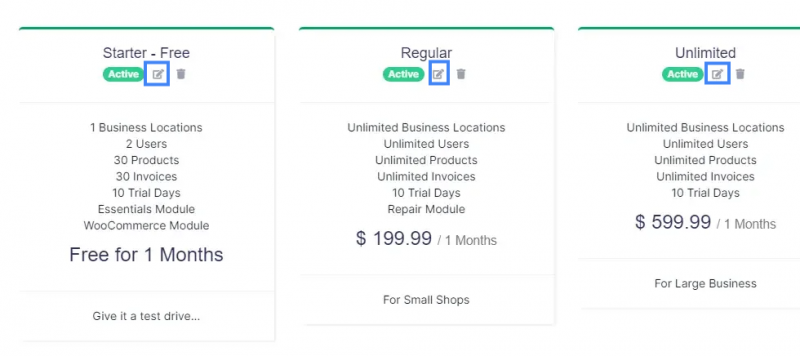
- Step 3: In the edit page, enable the ‘enable custom subscription link’ checkbox.
- Step 4: Add an active URL in the Custom Link Field. This URL must be active. eg: “Contact Us” page of your website.
- Step 5: Also, add relevant text to the Custom link text. This URL text will be displayed on the pay button of the package for the users.
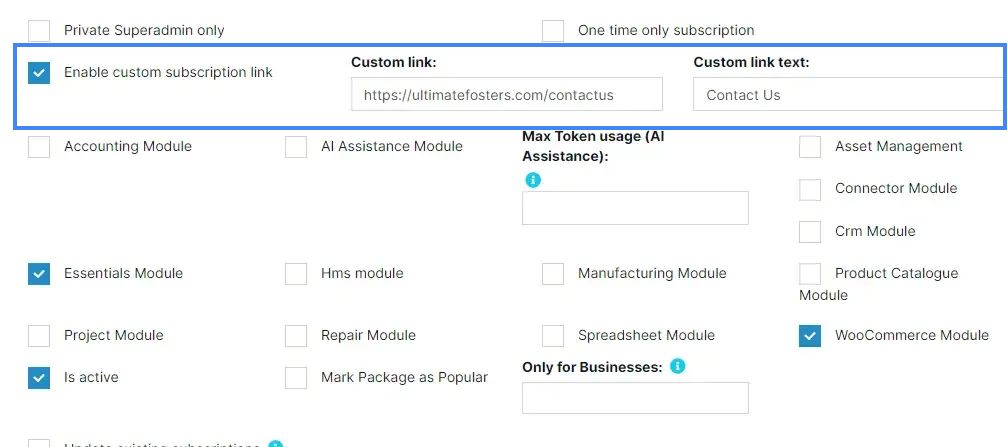
NOTE: If you add a custom link for the packages when a customer selects this package, it will redirect to the link. Else it will redirect to the payment page.
Adding Google Analytics Link:
What is Google Analytics – Wikipedia
In order to add a Google Analytics link, you can use the ‘Additional JS‘ option present in the SAAS module.
Go to Superadmin > Superadmin Settings > Additional JS. Here you can add the JS code for Google Analytics.
The Google Analytics link will be added to all pages of the website.
FAQ:
How to deactivate the currency running package and activate a new package?
In order to force activate a new package, you can use the “Force Activate” button.
You will find the button in Business Settings > Package Subscriptions. When users subscribe to a package they can use this force activate feature.
5.[ADDON] WooCommerce Module for OnePOS Advance
What is WooCommerce?
- WooCommerce is an eCommerce or Web Shop plugins for WordPress
- It is the most customizable eCommerce platform for building your online business.
- The advantage of using WooCommerce is – You can get LOTS of plugins are available which can help you setup different functionality as per your need. Also, lots of payment gateways, shipping gateways are present to help you easily setup payments
- WooCommerce is now the most popular eCommerce platform on the web (stats from BuiltWith), so you can rest assured you’re in good company.
What is WooCommerce Module for OnePOS?
WooCommerce module for OnePOS is a Separate Optional Premium Module for the POS application.
WooCommerce module for OnePOS is a simple module which when installed in your OnePOS software will help you with synchronizing products, stocks & orders. With this module, you open an online shop from your POS software in minutes and stop worrying about adding Products in multiple software, updating stocks, Orders & much more.
Features in WooCommerce module:
- Synchronize products categories from POS to your online WooCommerce based webshop. (POS to WooCommerce)
- Synchronize products from POS to your online WooCommerce based webshop. (POS to WooCommerce)
- Update stock details from POS to WooCommerce (POS to WooCommerce)
- Synchronize Orders from WooCommece to POS (WooCommerce to POS)
- Assign different price for the webshop. (Using Selling Price Group feature)
- Map taxes
- Shows the details synchronization logs.
- Auto Synchronization based on Cron jobs.
- Customizable products field for synchronization during product creation & update.
- Synchronize product price Including Tax or Excluding tax.
Read details here.
FAQ?
Q. When I install the WooCommerce addon, is it for my use only or is it available to my subscribers also?
- When you install WooCommerce module compatible with Superadmin you will get WooCommerce Option to create/edit packages in Superadmin.
- If a subscriber chooses a package with the WooCommerce feature enabled in it then they will see a WooCommerce option in the left sidebar. In WooCommerce menu they can add there WooCommerce store details and use it.
Q. Will this module also sync bookings?
- At the moment for the initial release, we have not added the sync for bookings.
- WooCommerce doesn’t have inbuilt bookings option with it.
- We will re-check if this is possible & if so, we will add this feature in future releases.
Installing the WooCommerce Module:
Installing the WooCommerce module to OnePOS is easy as cake. Make sure you meet the below requirements:
- Since this is not a standalone application you will need OnePOS (Download from here)
- OnePOS – Advance Version 2.11 or higher installed. For OnePOS installation step refer to this documentation.
Installation:
For WooCommerce module 2.0 or higher follow the instruction given in this link.
For older version follow the steps given below:
- Unzip the file downloaded from codecanyon.net. Inside that, you will find “WooCommerce” directory.
- Go to OnePOS installed directory. There you will find a folder named “Modules” (on the same level as app or bootstrap directory). If this folder is not present then create “Modules” folder (Make sure the folder name is exactly “Modules” with “M” in capital case). It should be inside the POS codebase, in the same level as “public” folder. (NOT insider public folder)
- Upload or Cut-Paste the “WooCommerce” directory inside this “Modules” directory.
- Open .env file. Inside that, you will find “ADMINISTRATOR_USERNAMES” configuration. Add the superadmin/administrator username in this option.
Example if “user1” is superadmin then:
ADMINISTRATOR_USERNAMES=user1 - Login with superadmin (username which is added in step 4). After Login, you will able to see the WooCommerce menu present in the sidebar. If not present them make sure the above steps are followed properly.
- If you pos is installed in www.example.com then go to www.example.com/woocommerce/install
- It will process for a few minutes and installation success message will be displayed.
Great, installation is done now.
API Settings
For connecting OnePOS to WooCommerce, we need to provide the API details of the WooCommerce shop.
- Generating API key: Generate API keys by following this instruction as given in WooCommerce documentation.
- In the permissions select Read/Write access.
- Copy Consumer Key & Consumer Secret and paste them in Woocommerce Consumer Key & Woocommerce Consumer Secret.
- Woocommerce App URL: Enter the URL where WooCommerce shop is set up.
For example http://www.yourstore.com
or https://www.yourstore.com
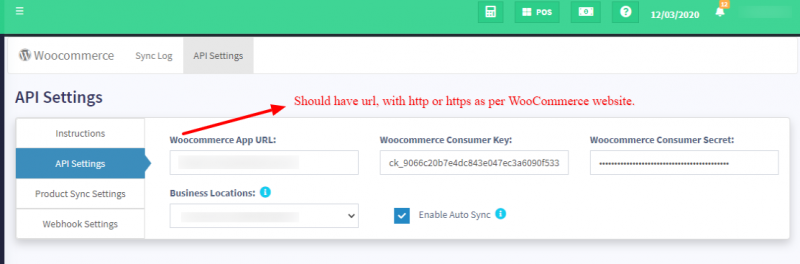
IMPORTANT: Make sure to add HTTP or HTTPS before the woocommerce app url.
Enable Auto Sync:
- If you want the products/categories to be auto-synced then enable this option.
- By default, Auto Sync happens everyday night. It can be configured programmatically to make it more frequent. But more frequent means more server load.
- NOTE: Cron job needs to be added for this auto-sync to work. Cron command is shown in “Backup” screen
- Once auto-sync is setup the sync log in the woocommerce module will show the activity log with a regular time interval (the default time interval will be 12 hours).
Set Custom Time for Auto Sync:
- To change the default time interval you can follow the steps in the link – Link
Product Sync Settings
- Default Tax Class: WooCommerce assigns a tax class to each item. Here you have to provide the default tax class which is used inWooCommerce.
- Sync Product Price: This specifies if the product price which will be sent to WooCommerce will include tax or exclude tax.
- Default Selling Price Group: Sometime you may want to have a different price in WooCommerce then that is POS. For that, you can create a Selling price Group in POS & assign that price group for WooCommerce. Price Group Document.
- Product fields to be synced with woocommerce while creating products: Here you can select the fields which will get synced to WooCommerce from POS while creating a new product.
- Product fields to be synced with woocommerce while updating products: Here you can select the fields which will get synced to WooCommerce from POS while updating an already created product. This option can be very useful if you want the POS to overwrite some of the fields while updating products.
Using the Module:
After installation, you will find the WooCommerce menu at the bottom of the left navigation bar. Click on it & go to the Sync menu.
Here you will find the options to sync Categories, Products, Orders & Tax.
Sync Product Categories:
Click on this Sync button to synchronize the categories & Sub-Categories present in UtimatePOS to WooCommerce.
Map Tax Rates:
This option is used to map the taxes present in OnePOS to that of the taxes present in WooCommerce.
This is useful for adding related tax for a product during creation & updating.
NOTE: You must map the taxes before Synchronizing Products & Orders.
Sync Products:
-
Make sure in the add/edit product(s) you have not checked the Disable Woocommerce Sync
-
If you have multiple locations in OnePOS, then the location which is assigned to work with WooCommerce from (API settings -> Business location) should have the products assigned to it.
-
Sync will work with Single & variable products only.
- Woocommerce can be enabled with only one location which you select in your API settings.
Synchronizing products is a time-consuming task and take up to 30 minutes or above depending on the number of products. Do not refresh or leave the page while synchronization is under progress.
Simple & Variable products synchronization is supported.
It has 2 options:
Sync only new products:
Using this option only newly created products in POS are created in WooCommerce. This option can be less time consuming, again it depends on the number of products.
Sync All:
Using this option all newly created products are created in POS & existing products are updated. Since it does both the operation of creation & updating it will be more time consuming than the previous option.
The number of products that are not synced will be shown as a popup message near the “sync product” button.
NOTE: The combo products will not be synced from OnePOS to woocommerce.
Sync Orders:
This option is used to get all orders in WooCommerce website to OnePOS.
All newly created or updated orders after the last sync get added to OnePOS. A special tag is also added to the order to mark it as an order from WooCommerce.
NOTE: Auto-sync not working:
Reason 1:
The auto-sync feature may not be enabled inside the Woo-commerce module.
Reason 2:
The cron job is not added.
NOTE: Orders going to draft:
Reason 1:
When order or sales from WooCommerce is synced with OnePOS, some orders may go to draft when the sufficient quantity is not available in OnePOS.
For example, an order from WooCommerce contains 10 Pieces of Pen, if only 7 pieces are available in OnePOS then instead of skipping the order, it goes to draft. With this, you can add a sufficient quantity of the products and make the order as final.
Reason 2:
OnePOS uses the below order mapping.
‘pending’ => ‘draft’,
‘processing’ => ‘final’,
‘on-hold’ => ‘draft’,
‘completed’ => ‘final’,
‘cancelled’ => ‘draft’,
‘refunded’ => ‘draft’,
‘failed’ => ‘draft’,
‘shipped’ => ‘final’
So, for example, if the order is pending in WooCommerce then it will be marked as a draft in OnePOS, similarly for other statuses.
NOTE: Automating Orders sync:
You can automate the order syncing by using the Order webhook described below.
Reset Synced Categories / Reset Synced Products:
When you click on sync Products it creates the product present in POS to WooCommerce. And with this, a link is established between the WooCommerce Products & POS Products.
Technically woocommerce products ID is stored in POS database to create a mapping between them.
After you have Synced the products if you click on “Reset Synced Products” then the link will be broken (technically the woocommerce product id stored in POS is deleted and set to null)
This reset is useful when you’re changing the WooCommerce Website.
After Reset if you click on Sync Products again then it will check for same products SKU present in WooCommerce, if not present then it will create the product and store the product id in POS.
Note: deleting of products in WooCommerce is not required if the SKU for products in WooCommerce & POS is the same.
Same applies to Categories also.
Using Order Webhook:
What is webhook:
Webhook helps you to get live orders from WooCommerce to OnePOS. Meaning whenever there is a new order in WooCommerce website it gets send instantly to OnePOS. This is a nice feature present in this module.
Setting up Webhook:
- Go to WooCommerce -> API settings -> WebHook settings, there you will find Order Created, Order Updated, Order Deleted, Order restored webhook settings containing Webhook Secret & Webhook Delivery URL
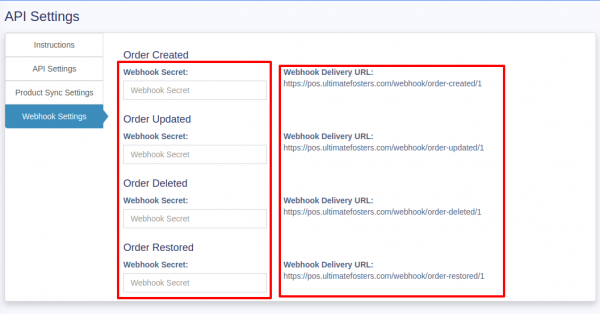
- Copy the Webhook Delivery URL for Order Created and create a new Webhook in WooCommerce. For creating Webhook in WooCommerce refer to this document: https://docs.woocommerce.com/document/webhooks/#section-3
- Name: Give any name which you can recognize.
- Status: Active
- Topic: Order Created
- Delivery URL: Paste the order created delivery URL from OnePOS.
- Secret: keep it blank.
- API version: WP REST API version 2
- Click on “Save Webhook” in WooCommerce.
- Copy the Generated “Secret” from WooCommerce and paste it to Webhook Secret of OnePOS Order Created.
- Repeat the above process for all other (Order Updated, Order Deleted, Order restored)
After configuring when a new order comes it will also be updated in OnePOS.
Error: Woocommerce webhook signature mismatch
If it shows this error in error log, then make sure you have provided the correct webhook secret in OnePOS as described in above step 2.
Updating the WooCommerce Module:
For WooCommerce module 2.0 or higher follow the instruction given in this link.
Error & Solutions:
Error 0:
If the WooCommerce website is running in HTTPS, make sure the APP URL in OnePOS-WooCommerce module App Settings has HTTPS.
If WooCommerce is in HTTP, make the APP URL as HTTP.
Error 1:
Sometime during synchronizing you may get the following message/error
“live.EMERGENCY: File:………\vendor\automattic\woocommerce\src\WooCommerce\HttpClient\HttpClient.phpLine:375Message:Syntax error”
Solution:
In your WooCommerce “API Settings” change the “Woocommerce App URL” by adding “index.php” to it.
Example: Change the URL from
http://www.myWooCommerceStore.com to http://www.myWooCommerceStore.com/index.php
Error 2:
Sometimes in WooCommerce API bulk operations (add/edit/delete) are restricted. So it will give a error like
“Sorry, you are not allowed to batch manipulate this resource. [woocommerce_rest_cannot_
To resolve this error, follow this steps:
- Install & activate Code Snippet plugin in wordpress. https://wordpress.org/plugins/code-snippets/
- Go to Snippet -> Add New and add a new snippet
- The snippet will have below written codes:add_filter( 'woocommerce_rest_check_permissions', 'allow_bulk_operation', 10, 4 ); function allow_bulk_operation( $permission, $context, $object_id, $type ) { return true; }
- Save & Activate it.
Now it will allow the bulk operation from API.
If you want to understand it better, check this link: https://wordpress.org/support/topic/restrict-endpoint-on-woocommerce-rest-api/
Error 3: Image not syncing
Sometimes products don’t sync because of the problem in the images file name and image format.
Solution:
WooCommerce have some restrictions which can be fixed by following this:
- Disable image sync by going to
- API Settings > Product Sync Settings > Product fields to be synced with woocommerce while creating products
- API Settings > Product Sync Settings > Product fields to be synced with woocommerce while editing products
- Uncheck Image and save
- They try to sync again.
OR do this:
- Try replacing all product images to jpeg or png format.
- Shorten the file name length as well for the images.
Error 4:
Not syncing issue.
Solution:
Follow the below steps:
- Open the wordpress website .htaccess file
- Add this 2 lines in the very top of the htaccess file, similar to the below screenshot:RewriteEngine on
SetEnvIf Authorization .+ HTTP_AUTHORIZATION=$0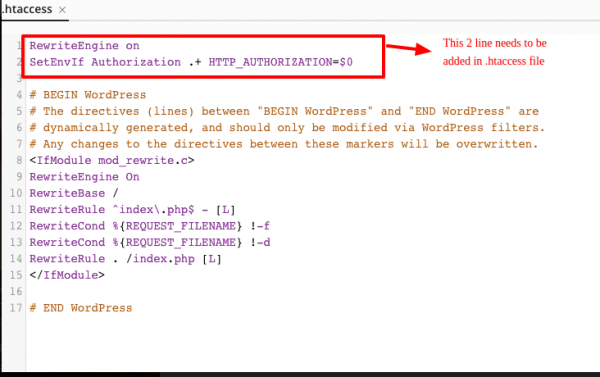
- After adding it, save the file and try to sync from OnePOS once again.
-
Adding/Editing custom Order status:
In WooCommerce you can add more order statuses. But in OnePOS we have mapped the default WooCommerce statuses to OnePOS status.
But you can easily add or modify this mapping.
Open this file: pos/Modules/Woocommerce/Utils/WoocommerceUtil.php
Search for the function: woocommerceOrderStatusToPosSellStatus
Change the status as per your need.
Status in left side(Key) is for WooCommerce & right side(Value) is for OnePOS.Troubleshooting steps to be followed if synchronization doesn’t work
Check if the timezone of OnePOS matches the time zone of Woocommerce.
Check whether these permissions are set for Webhook.
- Go to Woocommerce > Settings > Advance > Rest API (Select Rest API here)
- Enable Read/Write permission for User
- The WordPress permalinks option should be set to “Post Name”
- If still doesn’t work try to reset the permalink.
Version Log:
V 5.1 – Released June 20, 2024
- FIX: Fix the install issue
V 5.0 – Released June 7, 2024
- NEW: Updated as per new design.
NOTE: You must update OnePOS to V6.x before updating the module to this version.
Released V 4.1, January 29, 2024
- IMPROVEMENT: Removed deleted product variations from showing in the not synced product count.
- Other minor fixes & improvements.
Released V 4.0, March 02, 2023