1.Accounting Module
Installation:
Follow the steps as mentioned in the Installation Document
Updation:
Follow the steps as mentioned in the Updation Document
Auto Mapping of Transactions:
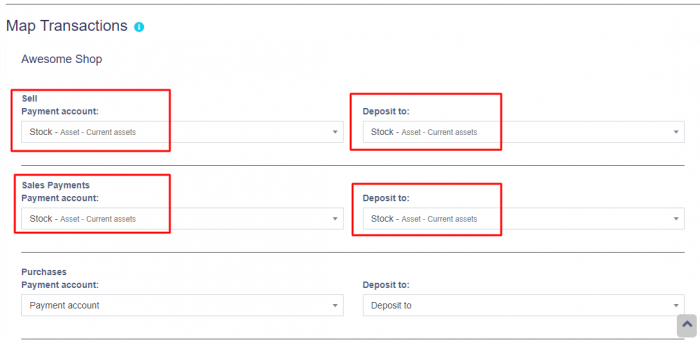
To automatically map transactions, follow the steps in Accounting Module > Settings.
In the map transaction select the payment account and the
corresponding deposit account for sell, sell payment, purchase, and purchase payment.
Whenever a transaction is done, it will be automatically mapped to the selected account.
Mapping of Expenses:
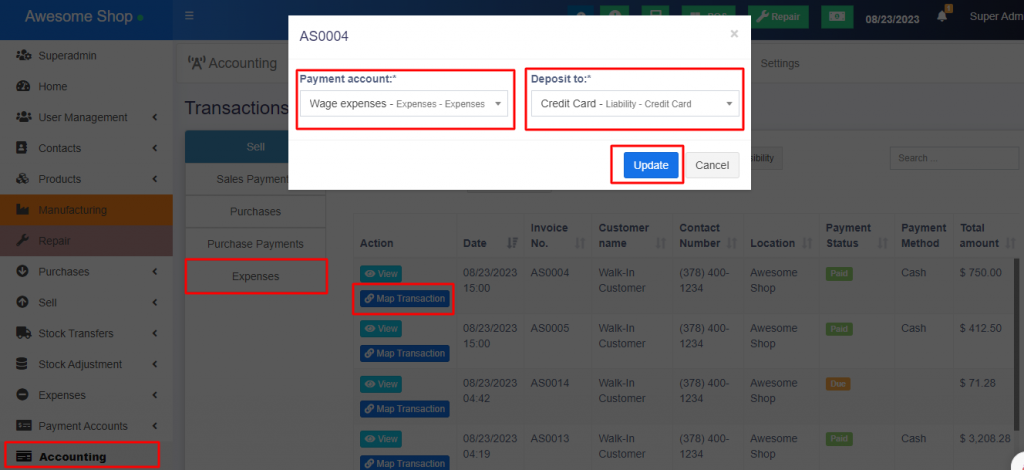
Expenses can also be mapped with the accounts, to achieve it follow the steps below
Step 1: Go to Accounting Module > Transactions > Expenses.
Step 2: Click on the ‘Map Transactions’ button.
Step 3: Select the ‘Payment Account’ and ‘Deposit to Account’.
Step 4: Save the transaction.
Video Demo:
Version Log:
V 1.0 – Released June 7, 2024
- NEW: Updated as per new design.
NOTE: You must update UltimatePOS to V6.x before updating the module to this version.
V 0.85, – Released January 30, 2024
- NEW: Option in journal to add new rows.
- NEW: Add description in transaction mapping
- FIX: Mapped transaction still showing if payment is deleted issue
- FIX: Unable to delete journal issue
- FIX: Reset accounting module issue
- FIX: journal_entry ref
- FIX: Purchase Payments drop-down issue solved
V 0.83, – Released December 15, 2023
- FIX: Transactions expenses/purchase payment not showing on some servers
V 0.8, – Released August 23, 2023
- NEW: Mapping of expenses with the account.
V 0.7, – Released June 6, 2023
- NEW: Auto mapping of sells, sell payment, purchase & payment payments.