Payment Methods:
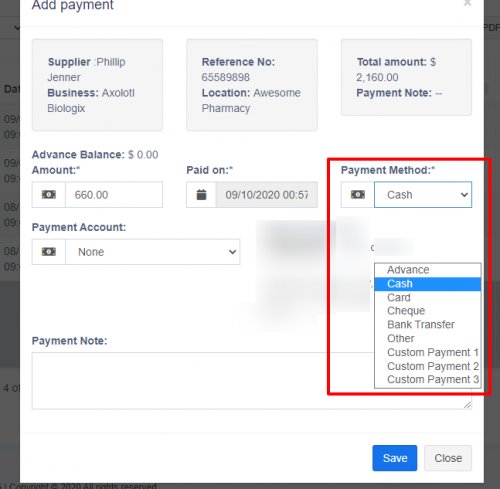
In the above screen, you can see “Pay method” or “Pay Via” options, the same option appears in POS “Multiple Pay” popup. With UltimatePOS you can add or edit existing payment options.
Enabling/Disabling Payment Methods in a business location:
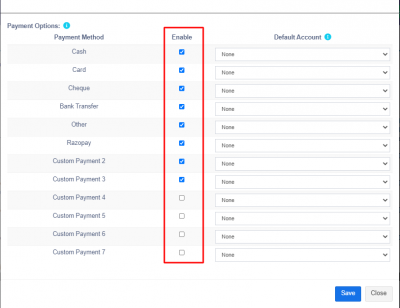
- In Add/Edit business location you will find a list of all payment methods, you can enable/disable it by checking/unchecking the option.
- Set default account for payment methods:
Editing custom payments labels:
- By default, the custom payment labels display as “Custom Payment 1” and similar.
- Go to Settings -> Business Settings -> Custom Label -> Labels for custom payments:
- Change ‘Custom Payment 1’ or the others to something you need.
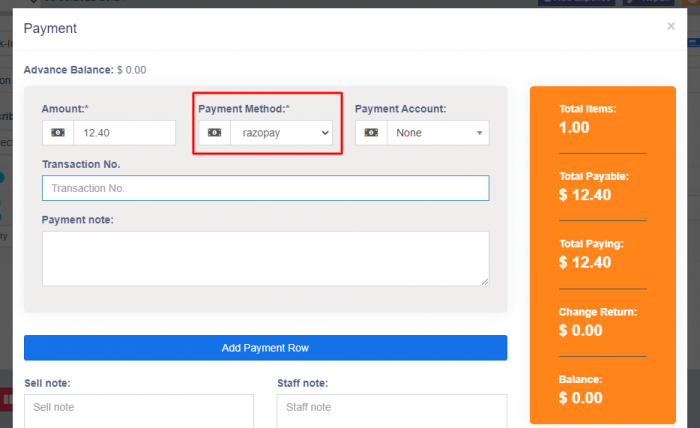
- For example, if we want the labels of custom payment 1 to display as “RazorPay” then it will be like this:‘custom_payment_1’ => ‘RazorPay’,
Using custom payments in POS:
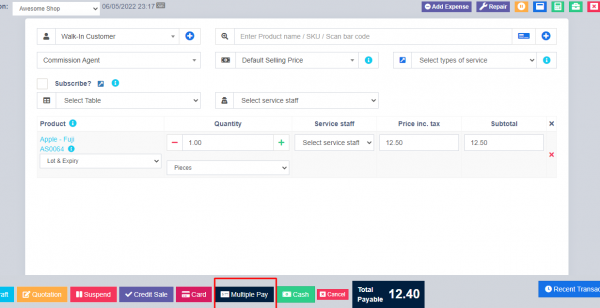
- While making a sale, in POS screen click on the multiple pay button.
- Select the required custom payment method for the payment method field.